Windows
The Windows screen lets you snap and tile the window you’re working in — move it to a half of the screen, a corner, the center, or full screen — with a keyboard shortcut you choose, so you never have to drag and resize windows by hand.
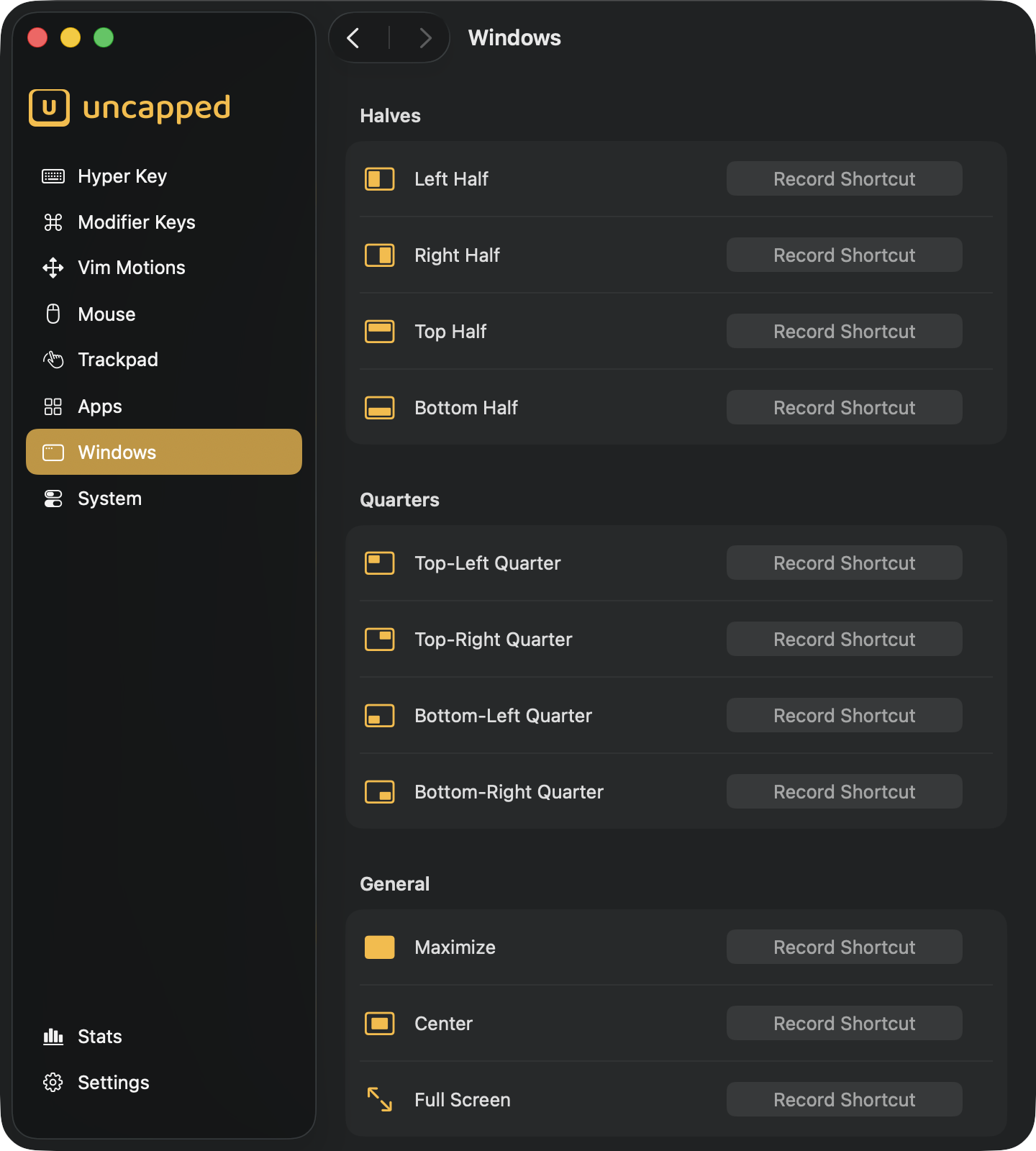
What window management does
Dragging a window to exactly half the screen, then lining up a second window beside it, is fiddly and slow. Window management turns that into a single keystroke: press your shortcut and the window you’re in jumps to the left half, the top-right quarter, the full screen — whatever you assigned.
The actions always work on the window that’s currently in front, and they respect your screen’s usable space: the menu bar and the Dock are left alone, and on a multi-monitor setup the window snaps within whichever display it mostly sits on. Nothing is pre-set — you decide which arrangements you use often enough to deserve a shortcut, and assign keys to just those.
RegisterEventHotKey API, so it fires no matter which app
is in front. When it fires, Uncapped uses the Accessibility API to read the focused
window’s position and size and write the new ones (Full Screen flips the window’s private
AXFullScreen attribute instead). Each combo must include at least one modifier
(⌘, ⌃, ⌥ or ⇧) — a plain key on its own can’t be a global hotkey, since it would
collide with ordinary typing.Assigning a shortcut
The screen lists every window action, grouped into Halves, Quarters and General. Each row shows the action’s icon, its name, and a button on the right where you set its shortcut. Every action starts unassigned — it does nothing until you give it a key combination.
Recording the keys
To give an action a shortcut, click its Record Shortcut button. It changes to
Type shortcut… to show it’s listening — now press the combination you want, such as
your Hyper Key plus an arrow key. As soon as you press a valid combination it’s saved, and
the button shows the shortcut you chose.
A couple of things to know while recording:
- Your combination must include at least one modifier (
⌘,⌃,⌥or⇧). A bare key is ignored and recording keeps waiting. - Press
Escto cancel without changing anything. - Press
DeleteorBackspaceto clear the action’s current shortcut.
Changing or clearing a shortcut
To change a shortcut, click the button again and record a new combination — the old one is
replaced. To remove a shortcut entirely, click the small x button that appears next to
it (its tooltip reads Clear shortcut). The action stays in the list, just without a
shortcut.
Halves
The Halves section snaps the focused window to fill exactly one half of the screen — handy for putting two windows side by side, or stacking two one above the other.
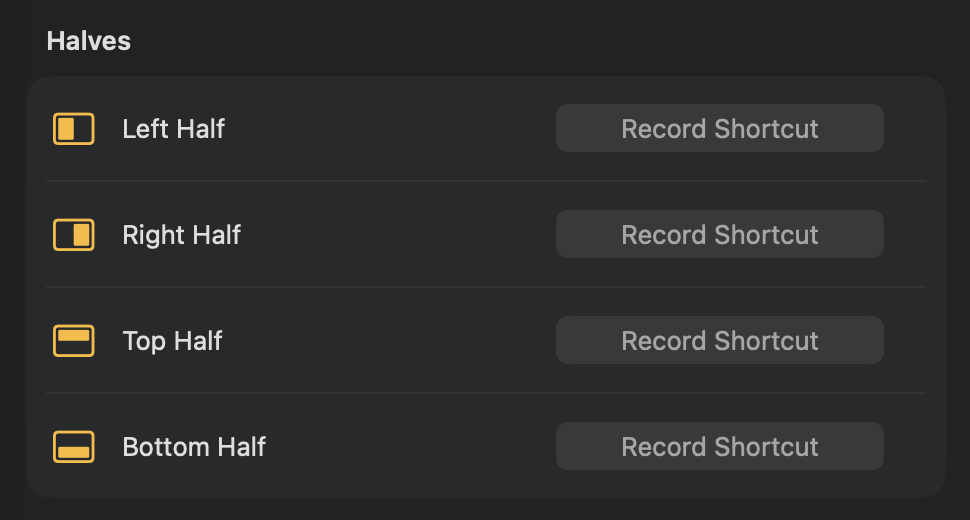
Left Half— fills the left half of the screen.Right Half— fills the right half.Top Half— fills the top half.Bottom Half— fills the bottom half.
Quarters
The Quarters section snaps the window to a corner, filling one quarter of the screen — useful for arranging four windows in a grid.
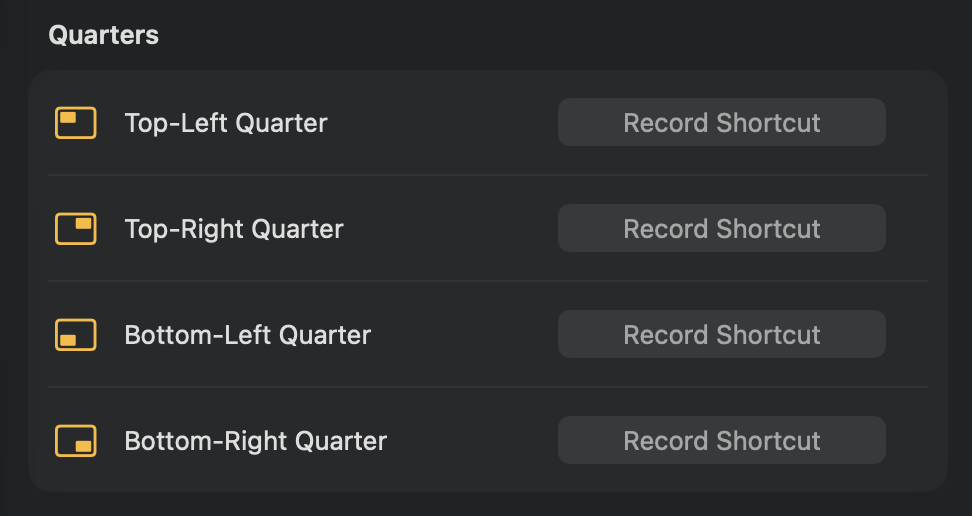
Top-Left Quarter— fills the top-left corner.Top-Right Quarter— fills the top-right corner.Bottom-Left Quarter— fills the bottom-left corner.Bottom-Right Quarter— fills the bottom-right corner.
General
The General section holds the whole-window actions.
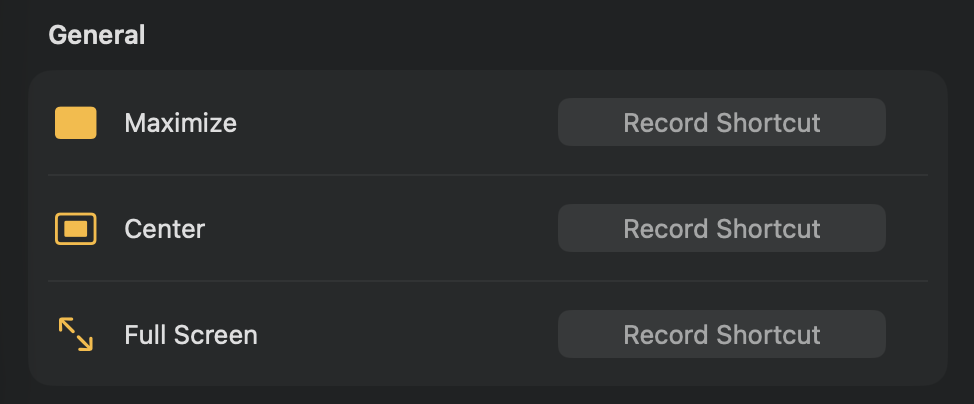
Maximize— grows the window to fill all the usable space on its screen, while still leaving the menu bar and the Dock visible. This is a resized regular window, not macOS fullscreen.Center— keeps the window’s current size and moves it to the middle of the screen. It doesn’t make the window bigger or smaller; it just centers it (shrinking it only if it was larger than the screen).Full Screen— toggles macOS’s native full screen for the window — the same thing the green button in a window’s title bar does, hiding the menu bar and Dock and giving the window its own Space. Press the shortcut again to leave full screen.
Maximize vs. Full Screen. Maximize simply makes a normal window as large as the
visible area, so the menu bar and Dock stay put and you can still see other windows behind
it. Full Screen is the real macOS full-screen mode: the window takes over the display in
its own Space. Use Maximize when you want a big window you can still switch away from
quickly; use Full Screen for distraction-free, edge-to-edge focus.When a shortcut is already taken
Each key combination can belong to only one thing at a time. If you try to assign a
combination that’s already used — by another window action, or by an app, system or trackpad
action elsewhere in Uncapped — a Shortcut Already in Use message appears, telling you
which one currently owns it and asking whether to reassign it.
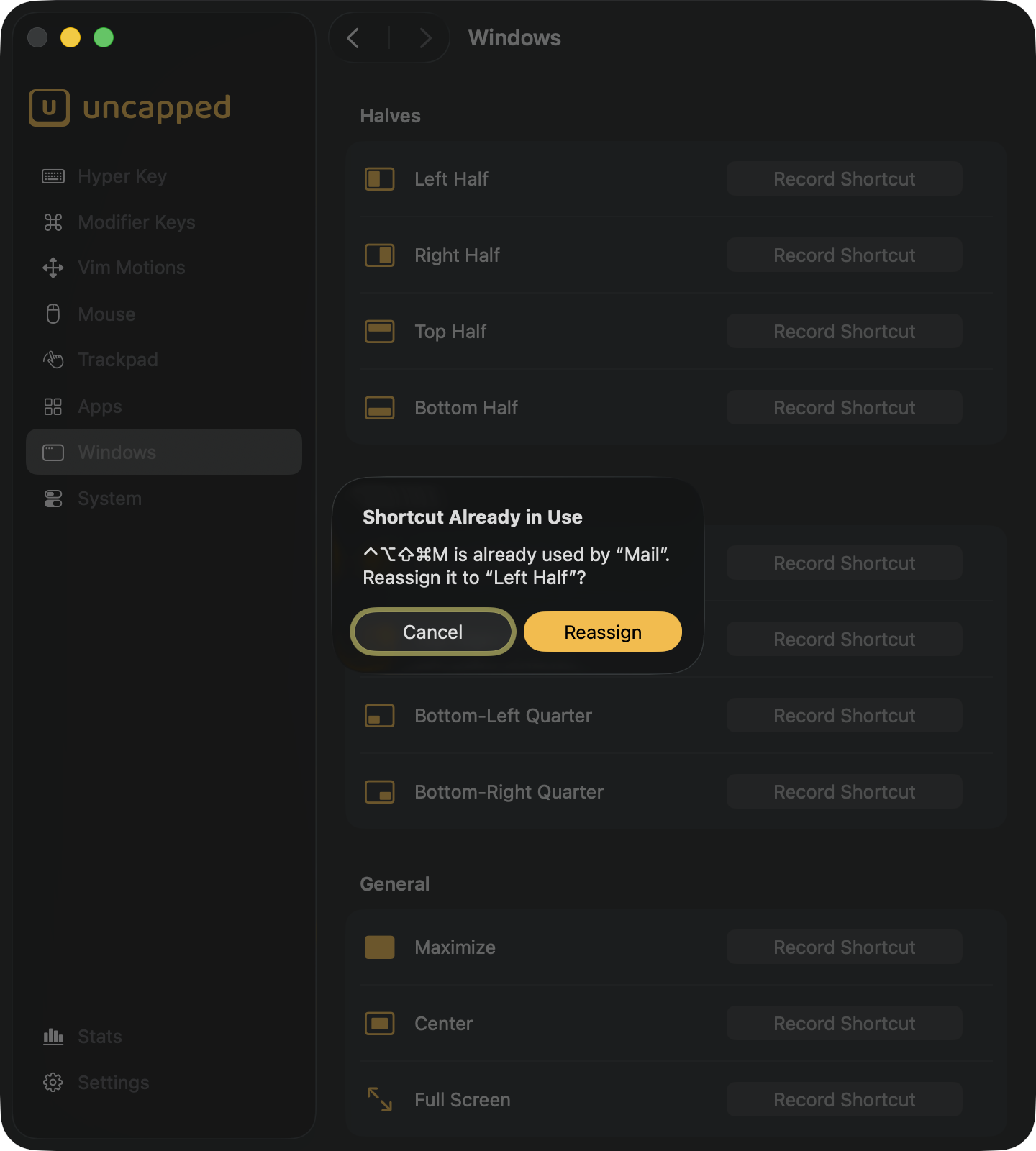
Choose Reassign to move the combination to the new action — Uncapped removes it from
whatever held it before, so a press always does exactly one thing. Choose Cancel to
leave everything as it was.