Vim Motions
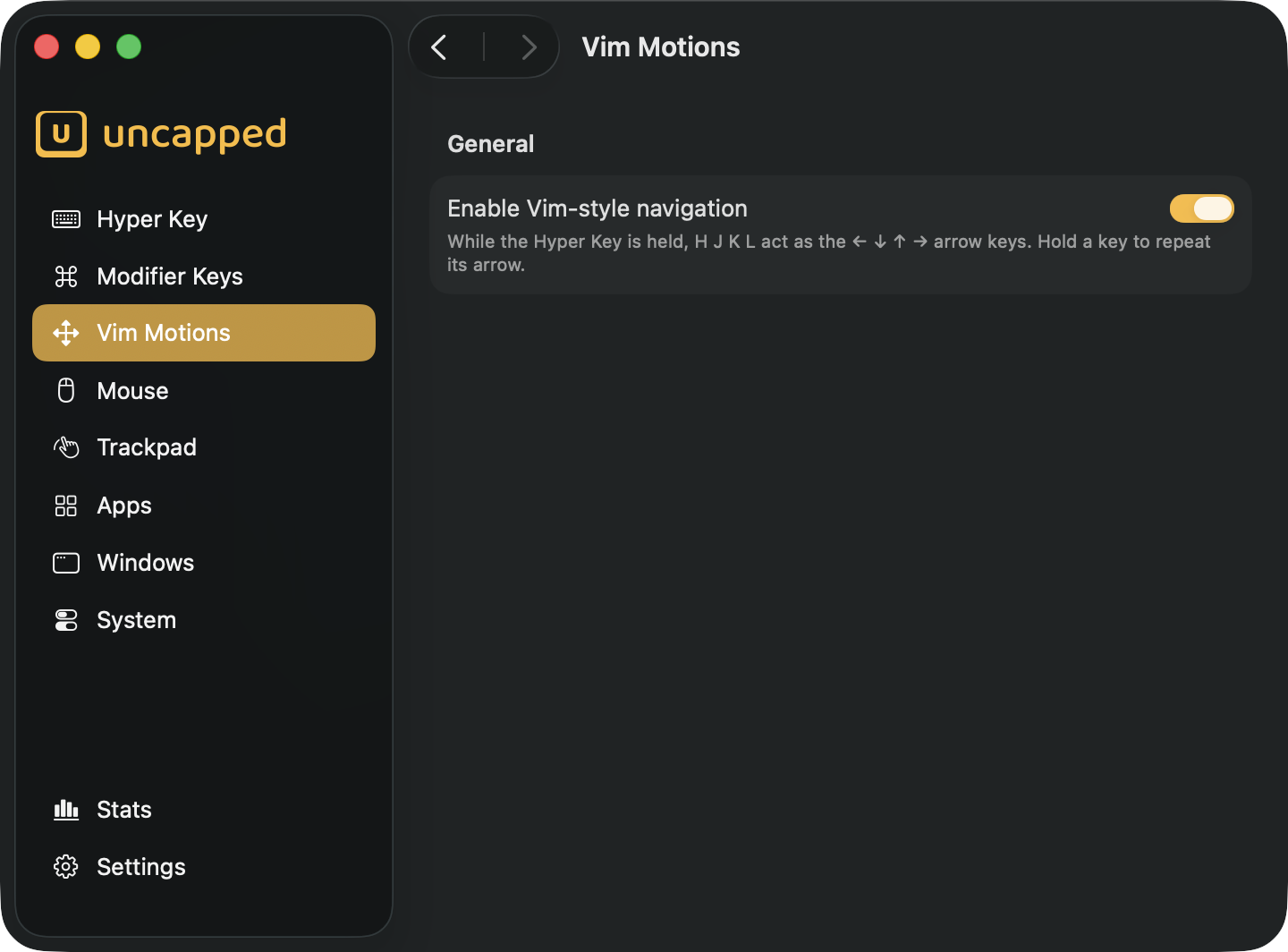
Vim Motions let you move the text cursor with the H J K L keys instead of reaching
for the arrow keys — so your hands stay on the home row while you edit. Hold the Hyper Key,
tap one of those four keys, and the cursor moves left, down, up or right.
What are Vim motions?
Vim is a much-loved text editor with a famous trick: instead of the arrow keys, you move
the cursor with four letters right under your fingers — H for left, J for down, K for
up and L for right. Because those keys sit on the home row (where your fingers
naturally rest), you never have to move your hand to the corner of the keyboard just to
nudge the cursor. People who get used to it find it faster and more comfortable.
Uncapped brings that same muscle memory to your whole Mac, not just to Vim. With this
feature on, holding the Hyper Key turns H J K L into the arrow keys in any app — a
text field in your browser, a note, an email, anywhere you’d normally press an arrow.
hjkl layout isn’t arbitrary. Bill Joy wrote the
original vi (Vim’s ancestor) in the 1970s on a Lear Siegler ADM-3A terminal — a
keyboard that had no dedicated arrow keys, but did print little arrows on the H J K
L keys themselves. That accident of hardware became the convention millions of people now
use by reflex.Turning it on
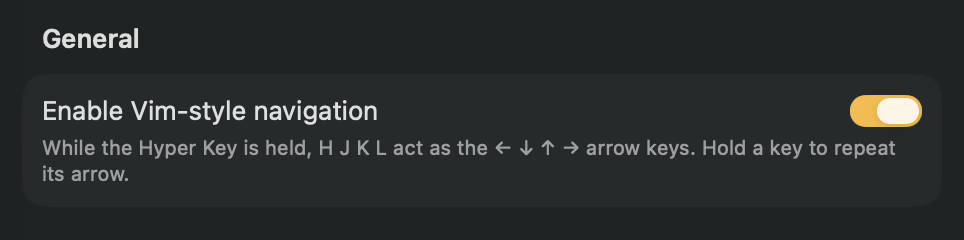
The General section is where you switch the feature on. Flip Enable Vim-style navigation on and, while the Hyper Key is held, H J K L start acting as the arrow
keys.
This setting is off until you turn it on.
Vim Motions ride on top of the Hyper Key, so they only work while the Hyper Key is
enabled. If you haven’t set the Hyper Key up yet, this section stays greyed out until you
do — see the Hyper Key page to get it running. By default the Hyper Key
lives on your Caps Lock key, so the everyday gesture is: hold Caps Lock, then tap
H / J / K / L.
The motions
While you hold the Hyper Key, the four keys map to the arrows like this:
| Hold Hyper Key + | Cursor moves | Same as |
|---|---|---|
H | left | ← |
J | down | ↓ |
K | up | ↑ |
L | right | → |
Every other key keeps working as a normal Hyper Key shortcut — only H J K L are
treated as motions, and only while the Hyper Key is down. Let go of the Hyper Key and those
keys type letters again as usual.
Holding to repeat
You don’t have to tap once per step. Hold one of the keys down (while still holding the
Hyper Key) and the cursor keeps moving in that direction, the same way holding a real arrow
key repeats. Hold Hyper Key + J to glide down through a paragraph, for example.
H J K L into plain arrow-key
presses — with none of the Hyper Key’s ⇧⌃⌥⌘ modifiers attached — so as far as macOS
and the app you’re typing in are concerned, you simply pressed an arrow key. That’s why it
works in any standard text field, and why holding a key repeats for free: the key-repeat is
the system’s own, not something Uncapped has to simulate.More motions on the way
For now, Vim Motions cover the four directional moves — H J K L for left, down, up
and right. Vim itself has a much richer vocabulary (jumping word by word, to the start or
end of a line, and so on), and we’d like to bring more of those motions to Uncapped over
time.
If there’s a motion you’d love to see — or a way you’d like these to behave — we’d genuinely like to hear it. Get in touch and tell us which Vim motions should come next; what we add will be guided by what people actually want.