Trackpad
The Trackpad screen lets you trigger the handy effects normally hidden behind trackpad gestures — flipping between pages, switching desktops, opening Mission Control — from a keyboard shortcut instead.
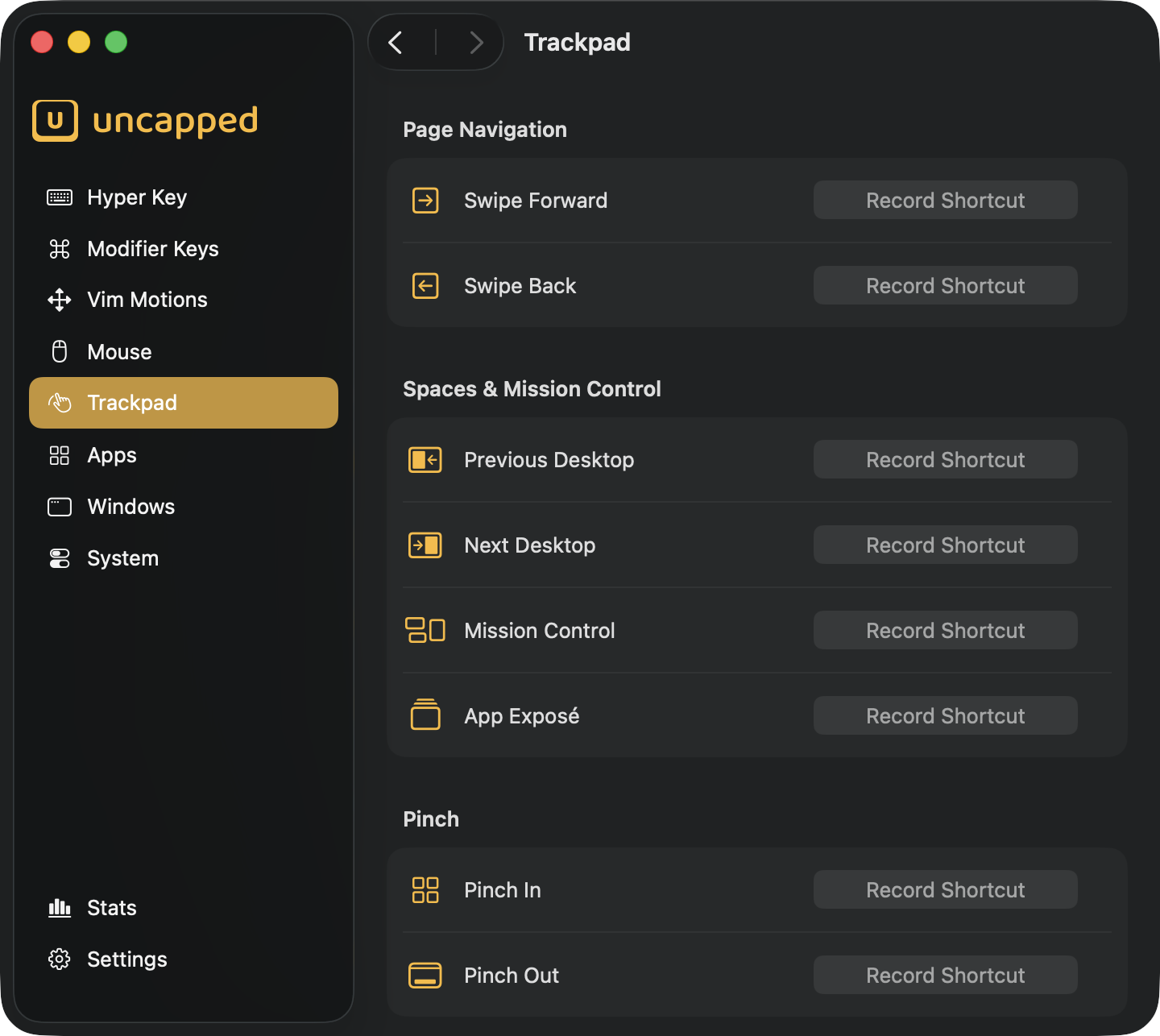
What the Trackpad screen does
macOS trackpads come with a set of multi-finger gestures: a two-finger swipe to go back and forward, a three-finger swipe to change desktops or open Mission Control, a pinch to show all your apps or clear the screen. They’re useful — but only if you have a trackpad under your hand and remember which finger-dance does what.
This screen gives every one of those effects a home on your keyboard. You pick a key combination for each action, and from then on that shortcut does exactly what the gesture would have done. It’s handy if you work mostly from a keyboard, use a mouse instead of a trackpad, or just want these moves under your fingers without reaching for the trackpad.
A few things worth knowing up front:
- Nothing is set up for you. Every action starts unassigned — each one is off until you record a shortcut for it. Assign only the ones you want.
- It doesn’t change your trackpad. Your real gestures keep working exactly as before; this screen only adds keyboard shortcuts that produce the same results.
- The same actions work on a mouse, too. If you have extra mouse buttons, you can bind any of these actions to a button on the Mouse screen instead of (or as well as) a keyboard shortcut.
⌃→, the very shortcut macOS already maps to moving
one Space to the right. That’s why these actions ride on your system shortcuts: they are your
system shortcuts, fired for you.Assigning a shortcut
Every action sits on its own row with a recorder button on the right. Setting one up is quick:
- Click the button that reads
Record Shortcut. It changes toType shortcut…to show it’s listening. - Press the key combination you want — for example
⌃⌥→. It’s captured immediately and the button shows your new shortcut.
A couple of rules and shortcuts while recording:
- A modifier is required. Your combination must include at least one of
⌘,⌃,⌥or⇧. A plain letter on its own is ignored (so Uncapped never hijacks ordinary typing). - Press
Escto cancel without changing anything. - Press
Delete(orBackspace) while recording — or click the✕button that appears on an assigned row — to clear a shortcut and leave the action unassigned again. - Even macOS’s own reserved combinations like
⌃→can be recorded here. Uncapped captures the keystroke before macOS acts on it. (This relies on Accessibility permission being granted — see Accessibility permission.)
If you pick a combination that’s already used somewhere else — another trackpad action, a window
action, a system action, or an app launch shortcut — Uncapped asks before taking it over. A
dialog titled Shortcut Already in Use tells you what currently owns the combination and
offers Reassign (move it to this action) or Cancel (leave everything as it was).
Page Navigation
These two replay the standard “back” and “forward” shortcuts that browsers, Finder, and many other apps share.
Swipe Forward— replays⌘], moving forward in your history (the next page, the next folder).Swipe Back— replays⌘[, going back one step.
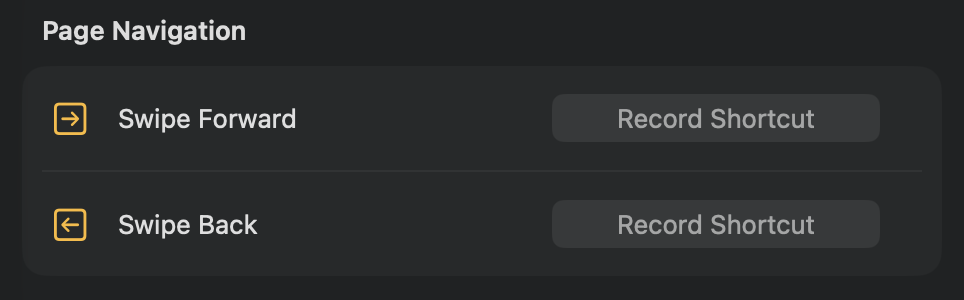
Because these mimic ⌘] / ⌘[, they only do something in apps that support those shortcuts —
Safari, Finder, and most document-based apps. In an app that doesn’t, the shortcut simply has no
effect.
Spaces & Mission Control
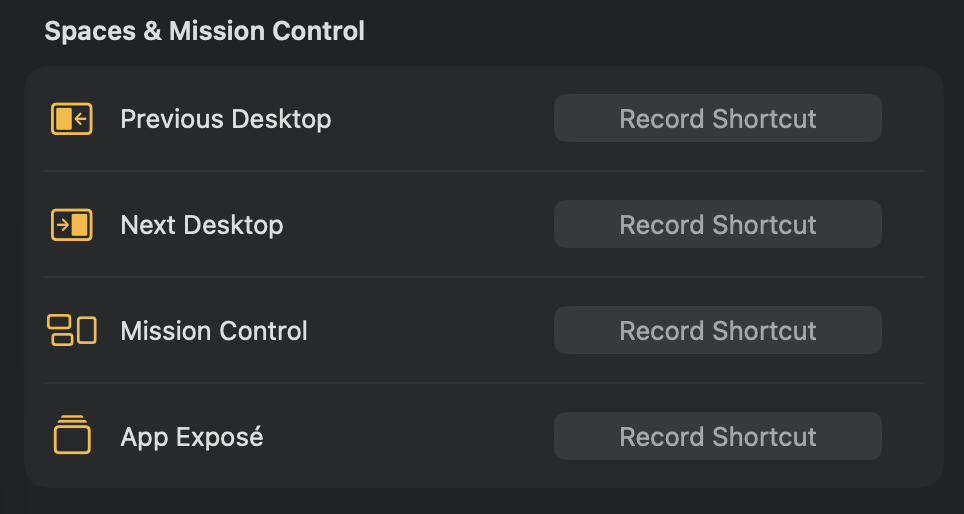
These four cover moving between desktops (Spaces) and the two overview features. They work system-wide.
Next Desktop— replays⌃→, sliding to the Space on the right.Previous Desktop— replays⌃←, sliding to the Space on the left.Mission Control— replays⌃↑, opening Mission Control to show all your windows and Spaces at once.App Exposé— replays⌃↓, spreading out just the current app’s windows.
Pinch
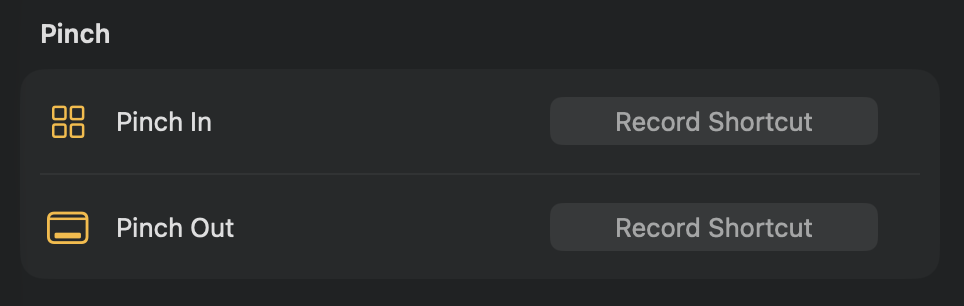
The two pinch gestures map to the “show everything” and “show nothing” views.
Pinch In— opens Show Apps (the grid of all your applications, the successor to Launchpad), the same as pinching your thumb and three fingers together on a trackpad.Pinch Out— triggers Show Desktop, sweeping every window aside so you can see your desktop, the same as spreading thumb and fingers apart.
How these actions work
Because every action replays a built-in macOS shortcut, each one depends on that shortcut still being switched on.
System Settings › Keyboard › Keyboard Shortcuts (for example the Mission Control or Spaces
shortcuts), the corresponding Uncapped action won’t fire either. macOS ships with all of them
on by default, so this only bites if you’ve changed them yourself. Likewise, Swipe Forward
and Swipe Back only work in apps that understand ⌘] / ⌘[.