System
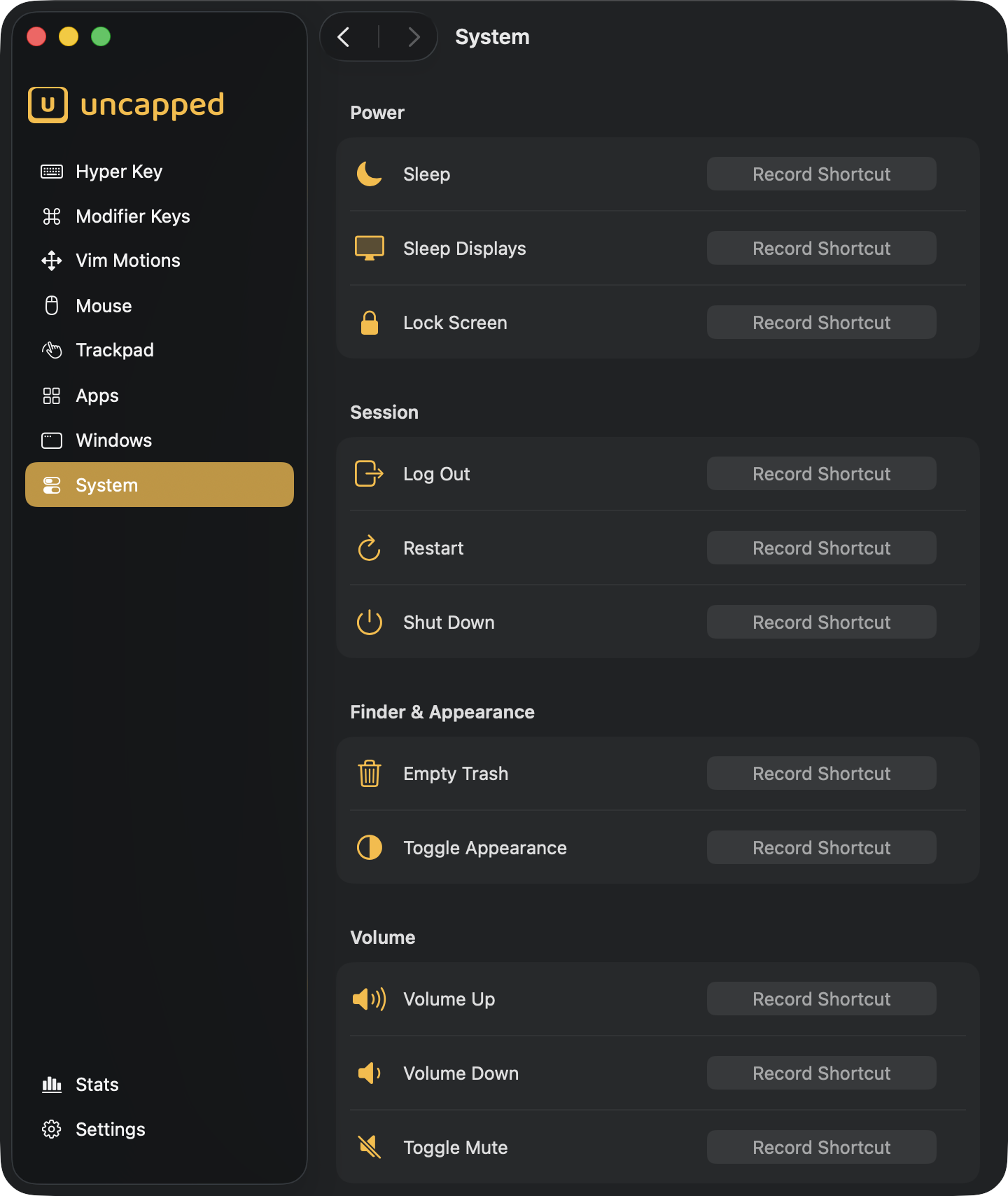
The System screen lets you put everyday Mac commands — sleeping, locking, restarting, emptying the Trash, changing the volume and more — on your own keyboard shortcuts, so you can trigger them from anywhere without reaching for a menu. Nothing is assigned to start with; you pick which commands matter to you and choose a shortcut for each.
What the System screen does
Think of the System screen as a list of one-tap Mac commands. Each row is a single action —
Sleep, Lock Screen, Empty Trash, Volume Up, and so on — and next to each one you can
record a global keyboard shortcut. “Global” means the shortcut works no matter which app
you’re in: press it while writing an email, browsing, or coding, and the action runs.
Every action is off until you record a shortcut for it — there are no defaults. The commands are grouped into four sections — Power, Session, Finder & Appearance and Volume — followed by a short note about permissions.
Assigning a shortcut
Every row works the same way: a small recorder on the right captures the key combination you want to use for that action.
Recording a shortcut
- Click
Record Shortcuton the action’s row. The label changes toType shortcut…. - Press the key combination you want — for example
⌘⇧S. The combination must include at least one modifier (⌘,⌥,⌃or⇧); a plain letter on its own is ignored. - As soon as you press a valid combination it’s saved automatically, and the row shows the combination in place of the label.
Press Esc while recording to cancel and keep whatever was there before. Press Delete (or
Backspace) to clear the shortcut entirely.
Changing or clearing a shortcut
Once an action has a shortcut, the row shows that combination instead of Record Shortcut.
To change it, click it and record a new one. To remove it, click the Clear shortcut (×)
button beside it — the action goes back to having no shortcut.
When a shortcut is already in use
Shortcuts have to be unique across Uncapped. If you record a combination that’s already used
somewhere else — another System action, or an action on the Windows, Apps, or
Trackpad screens — Uncapped shows a Shortcut Already in Use prompt telling you what
currently owns it.
- Choose
Reassignto move the combination to the new action. It’s automatically removed from whatever had it before, so a press is never ambiguous. - Choose
Cancelto leave everything as it was.
Power
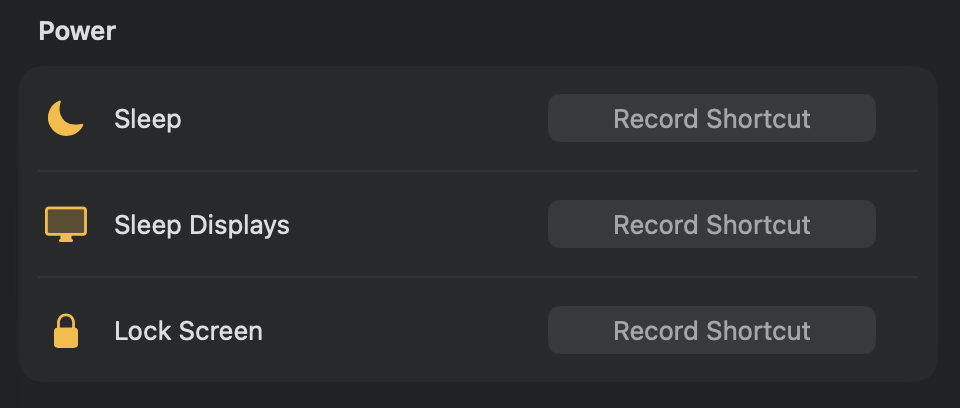
Sleep— puts your Mac to sleep, the same as choosing Sleep from the Apple menu.Sleep Displays— turns the screen(s) off without putting the whole Mac to sleep. Handy for stepping away while a download or render keeps running.Lock Screen— locks your Mac instantly and shows the login window, so you’re back to the password prompt right away. It happens immediately, with no confirmation, and needs no permission.
Sleep is a one-line AppleScript sent to macOS’s
System Events. Sleep Displays has no AppleScript equivalent, so Uncapped runs the
built-in pmset displaysleepnow command (it needs no special privileges). Lock Screen
calls SACLockScreenImmediate() from macOS’s login framework — a private but long-stable
call — which is why it locks instantly without going through a prompt.Session
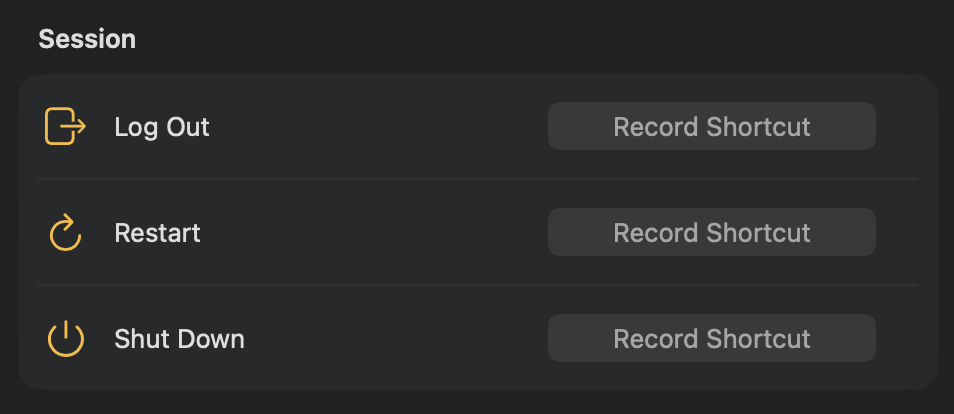
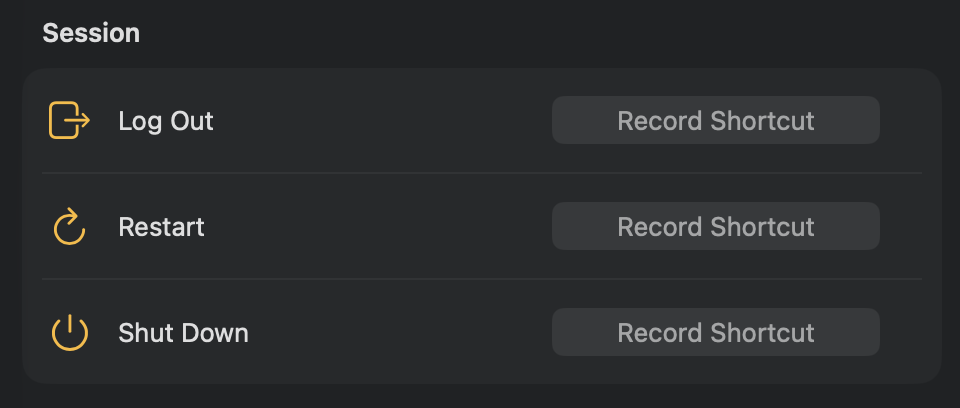
Log Out— logs out of your user account.Restart— restarts your Mac.Shut Down— shuts your Mac down.
Finder & Appearance
Empty Trash— empties the Trash. Uncapped checks first and tells you what happened with a brief on-screen message: “Trash emptied” when it cleared something, “The Trash is already empty” when there was nothing to remove, or “Couldn’t empty the Trash” if something went wrong.Toggle Appearance— switches macOS between Light and Dark mode. Press once to go dark, press again to go back to light.
Toggle Appearance flips macOS’s dark-mode preference via
System Events.Volume
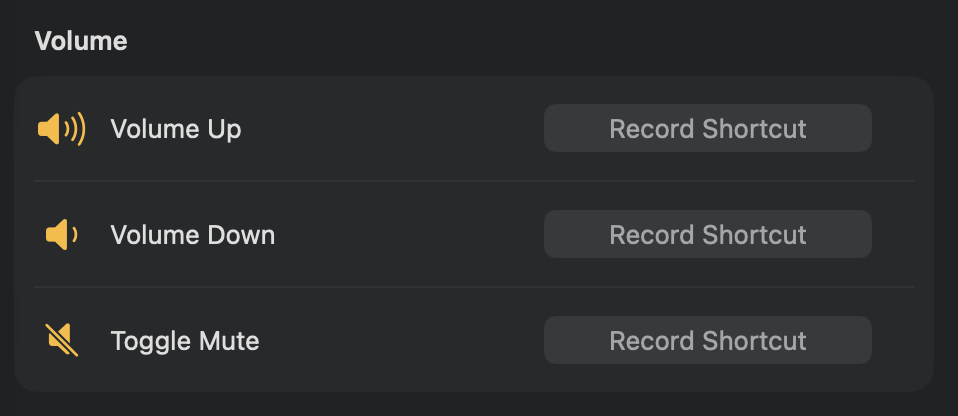
Volume Up— raises the system output volume one step (about 6 out of 100) each press.Volume Down— lowers the system output volume by the same step each press.Toggle Mute— mutes the output, and unmutes it on the next press.
These three change your own Mac’s sound directly and need no permission.
Permissions
A few of these actions ask macOS for permission the first time you use them — this is normal, and you only have to do it once.
The first time you run an action that controls macOS — Sleep, Restart, Shut Down,
Log Out, Empty Trash or Toggle Appearance — macOS asks you to let Uncapped control
“System Events” (or “Finder”, for Empty Trash). Click OK to allow it: you grant
this just once, and the shortcut works every time afterward. Volume and Lock Screen need
no permission at all.
System Events (or Finder), which triggers macOS’s one-time Automation permission prompt the
first time. The volume commands run inside Uncapped’s own process, and Lock Screen uses a
direct system call — so neither of those ever prompts. Behind the scenes, each shortcut you
record is registered as a global hotkey with macOS, which is what lets it fire from any app.