Stats
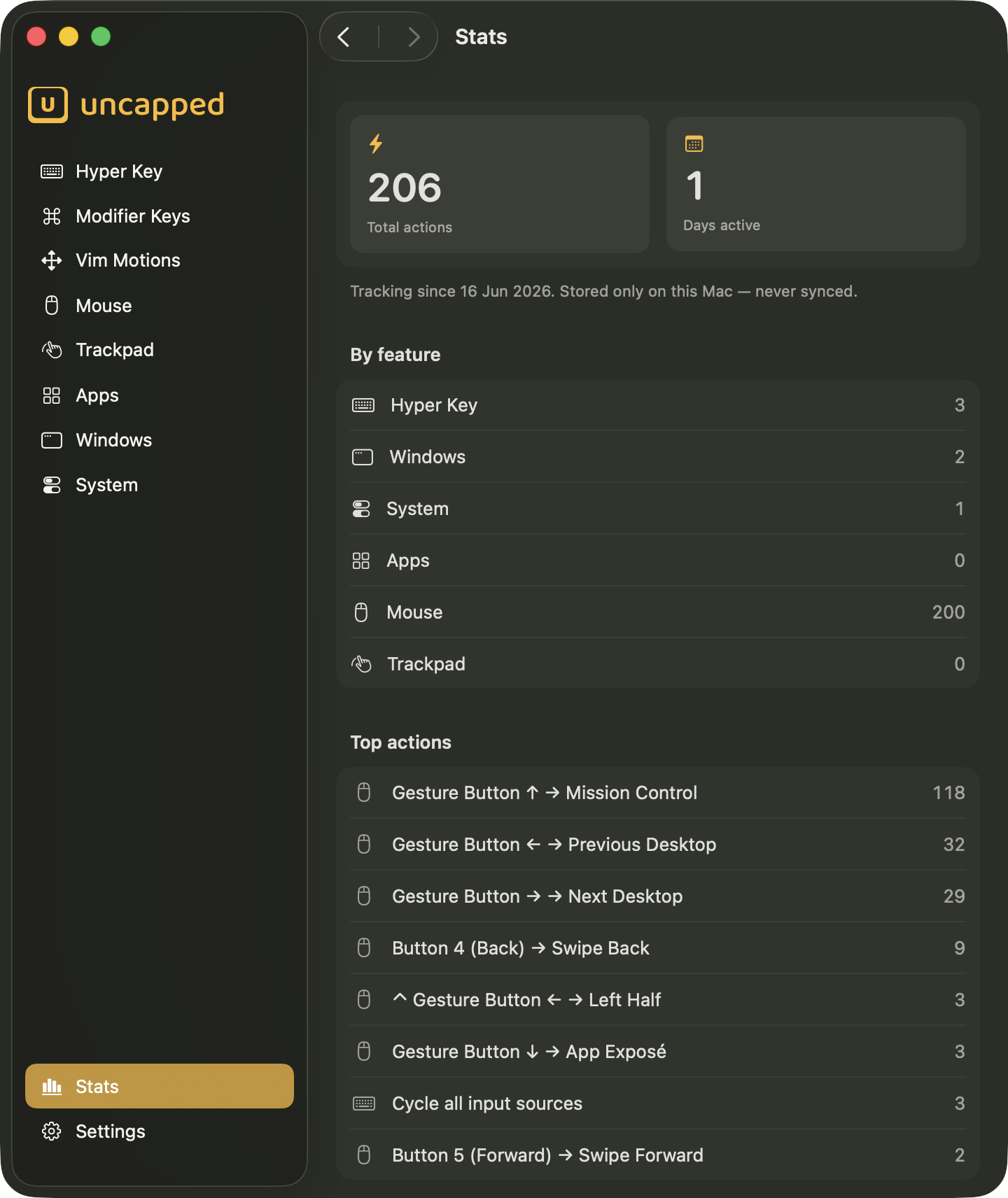
The Stats screen is a private, at-a-glance picture of how much you actually lean on Uncapped — how many actions you’ve triggered, how many days you’ve used it, and which features and shortcuts you reach for most. Everything you see here is counted and kept entirely on your Mac.
What the Stats screen shows
There’s nothing to set up or switch on here — Stats is a read-only summary, not a
settings page. As you use Uncapped, it quietly keeps a running tally and the screen updates
live, so you can leave it open and watch the numbers tick up.
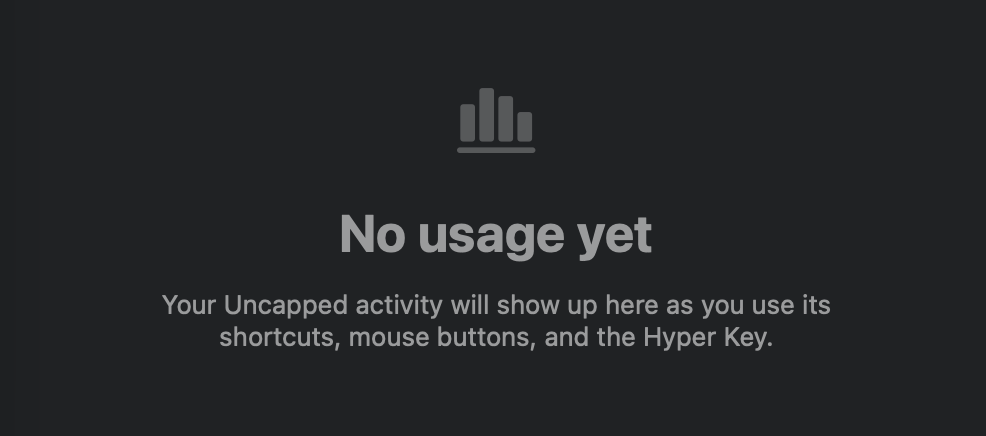
Until you’ve done something Uncapped can count, the screen shows a friendly placeholder —
No usage yet, with the note “Your Uncapped activity will show up here as you use its
shortcuts, mouse buttons, and the Hyper Key.” The moment you trigger your first action, the
real summary takes its place.
The most important thing to know is what doesn’t happen: your stats never leave your Mac. They aren’t uploaded, shared, or synced to other devices — they’re just a personal counter for you.
Overview
At the top, two large tiles give you the headline numbers, with a line underneath telling you when tracking began — for example, “Tracking since 3 Jan 2026. Stored only on this Mac — never synced.”
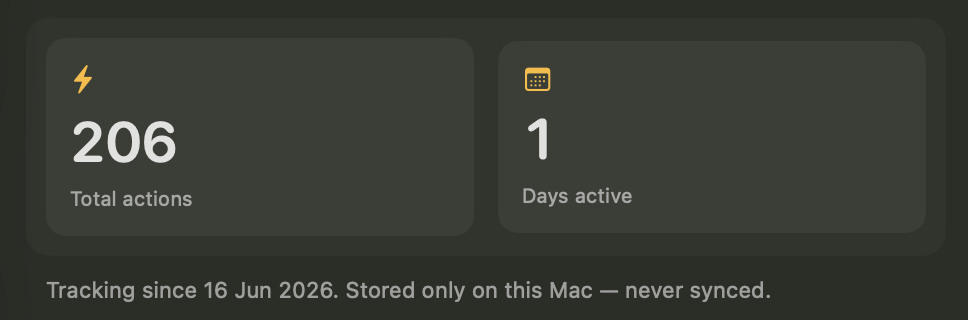
Total actions
Total actions is the lifetime count of every action Uncapped has carried out for you —
every Hyper Key tap, window snap, system shortcut, app launch, mouse-button press and
trackpad gesture, all added together since you started using it.
Days active
Days active is how many separate days you’ve used Uncapped on. It counts a day the first
time you do anything that day, so a busy day and a quiet day each add exactly one — it’s a
measure of how many days Uncapped has been part of your routine, not how hard you worked it.
By feature
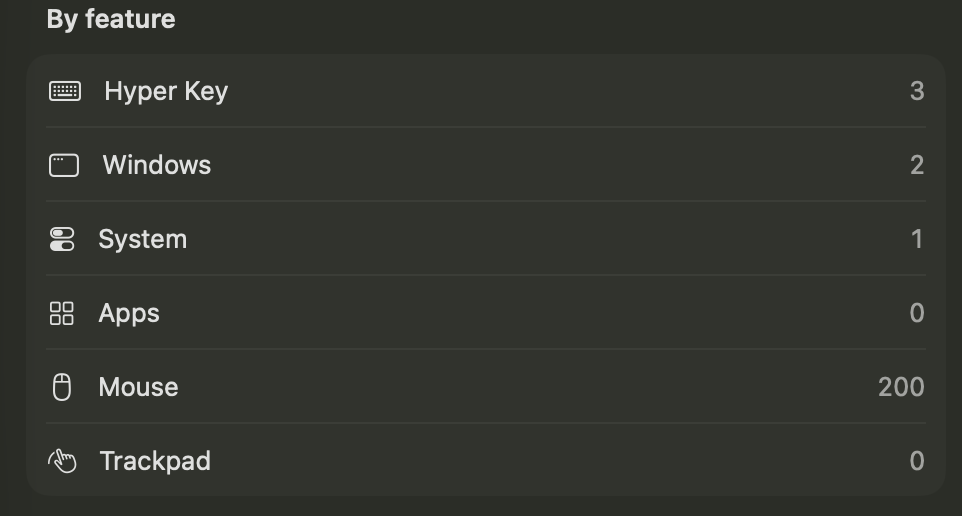
The By feature list breaks your total down by area of the app, so you can see where your
usage actually goes. It lists six features, each with its own running count, in this order:
Hyper Key— taps of the Hyper Key that run an action (for example switching input source or sendingEscape).Windows— window-management actions like snapping a window to a half or moving it between displays.System— system shortcuts such as taking a screenshot, sleeping the Mac, or adjusting volume and brightness.Apps— launching or switching to apps with your app shortcuts.Mouse— actions you’ve mapped onto extra mouse buttons.Trackpad— actions triggered by trackpad gestures.
You may notice Modifier Keys and Vim Motions aren’t in the list. That’s deliberate:
Stats only counts deliberate, one-off actions you trigger on purpose, not the steady
stream of key-presses those two features produce as you type and navigate.
Modifier Keys (the Meh and Phew keys) work by injecting a
modifier into nearly every keystroke you make, and Vim Motions fires on each navigation
key. Counting those would bury the genuinely intentional actions under thousands of
high-frequency, low-meaning events — so they’re left out of the tally on purpose.Top actions
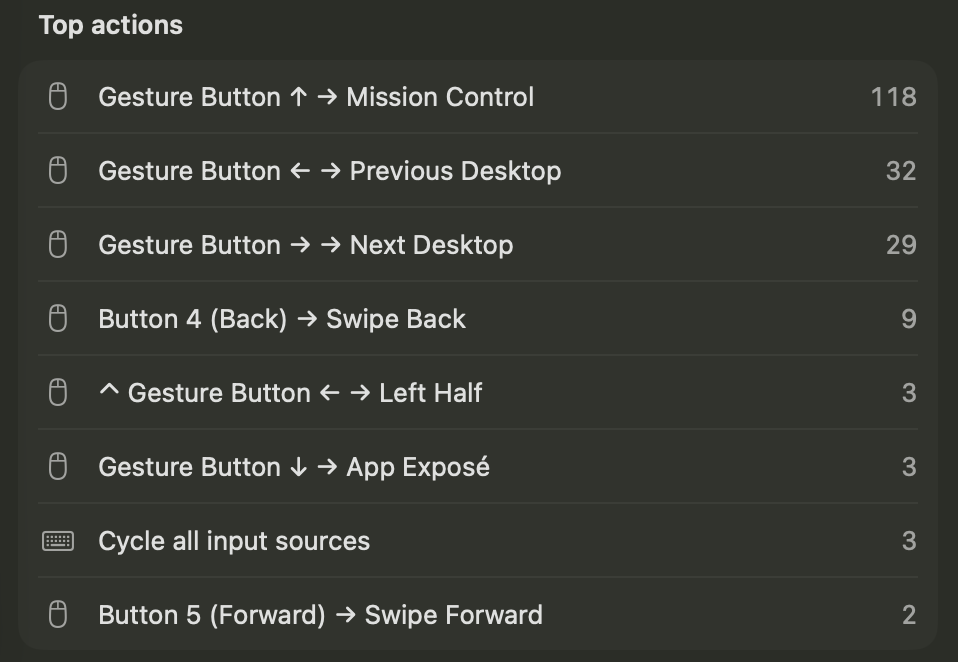
Finally, Top actions is a ranked list of your eight most-used individual actions,
most-used first — the single shortcuts you rely on most, by name. Depending on how you use
Uncapped, you might see entries like Left Half, Safari, or Send Escape, each with the
number of times you’ve triggered it.
It’s a quick way to spot the shortcuts that have genuinely become second nature — and, sometimes, to notice a favourite you’d forgotten you set up.