Snippets
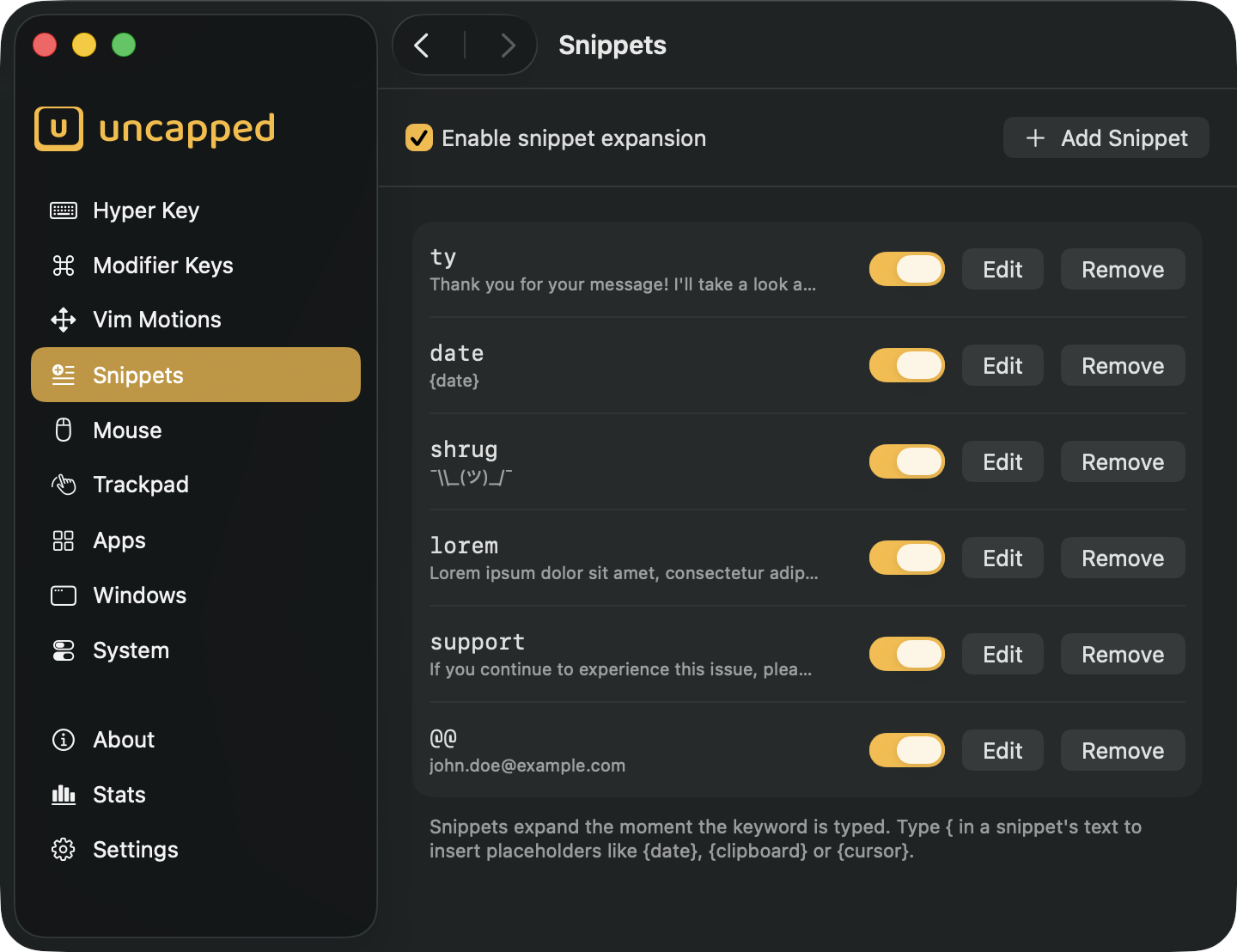
Snippets turn a short keyword into a longer piece of text, anywhere you type. Set ty to
stand in for “thank you”, and every time you type ty — in a browser field, a chat, an
email, your editor — Uncapped quietly deletes the keyword and types the full phrase for you.
It’s the fastest way to stop retyping the same things: a canned reply, a mailing address, a
support response, a block of code you paste all the time.
What a snippet is
Every snippet is just two things:
- A keyword — the short trigger you type, like
tyor;sig. - The text it expands into — anything from a single line to several paragraphs, and it can include placeholders that fill themselves in (today’s date, your clipboard, and more).
Type the keyword and the expansion takes its place. There’s no menu to open and no shortcut to remember — the keyword is the shortcut.
Turning expansion on
The Enable snippet expansion toggle at the top of the screen is the master switch for
the whole feature. It’s on by default, so snippets work as soon as you add one. Turn it
off and every snippet goes quiet at once, without your having to delete anything — handy if
you ever want to type a keyword literally.
Because Uncapped watches your typing to spot keywords, snippets rely on the same Accessibility permission the app already asks for when you first set it up. If you’ve got the Hyper Key or mouse buttons working, snippets need nothing extra.
Adding a snippet
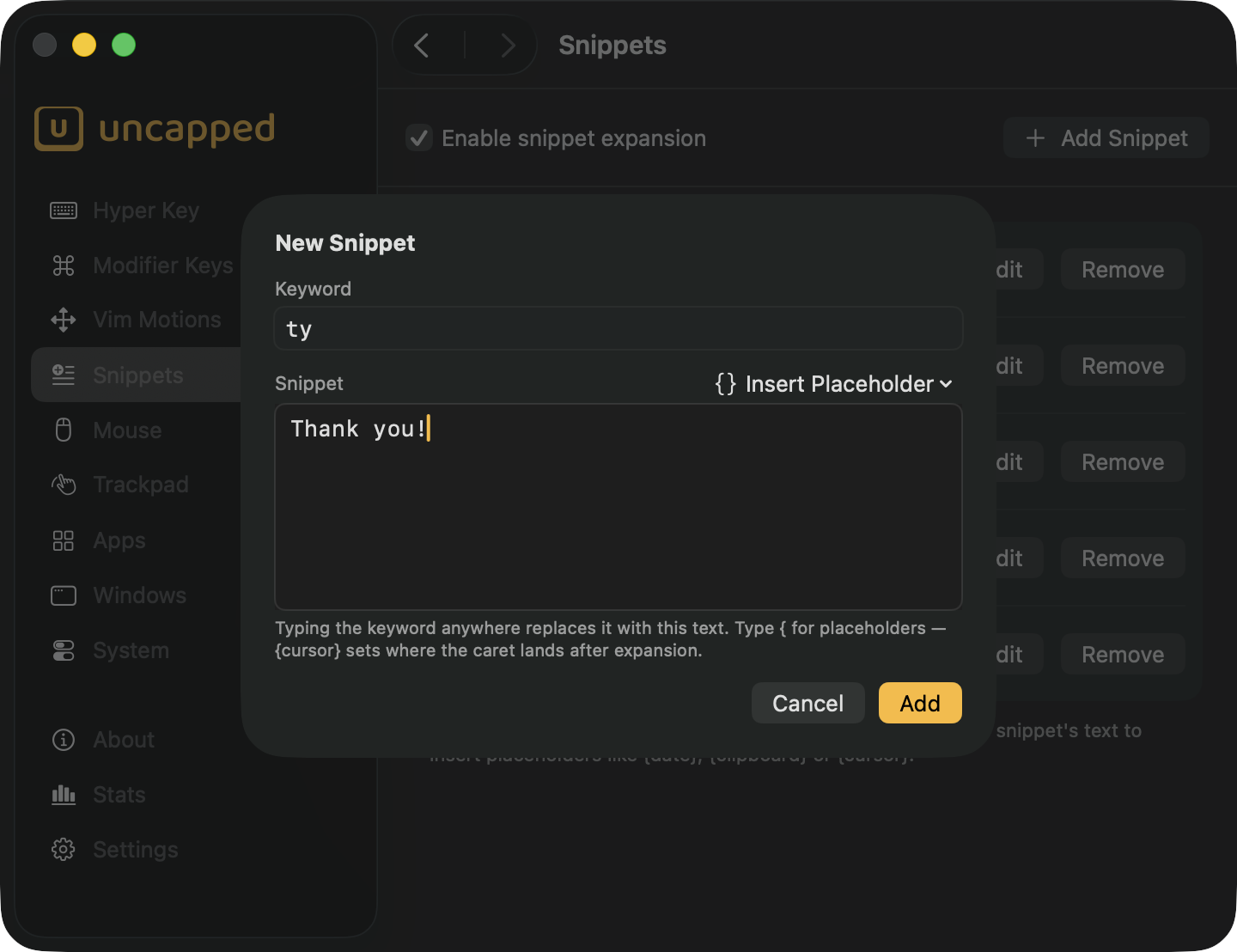
Click Add Snippet to open the editor. Fill in the keyword and the text it should
expand into, then click Add.
A few rules keep keywords predictable:
- A keyword must be at least two characters long, so a single stray letter never triggers an expansion.
- Spaces are allowed inside a keyword —
my addrworks just as well asmyaddr. - Each keyword has to be unique. If you reuse one, the editor tells you and won’t let you save until you change it.
A good keyword is one you won’t type by accident. A short one like ty is quick, but because
expansion fires the instant you finish typing it, ty also triggers inside words like
typing or party. If that gets in your way, give the keyword a leading symbol — ;ty — so
it only fires when you mean it. That’s why many people start their keywords with a punctuation
mark: ;sig, ,addr.
; or ,. Expansion happens the moment the keyword matches, so a distinctive trigger keeps it
from going off in the middle of an ordinary word.Placeholders
Placeholders are little tokens in curly braces that get replaced with live information the moment the snippet expands — so a snippet can insert today’s date, whatever you last copied, or a fresh ID every single time.
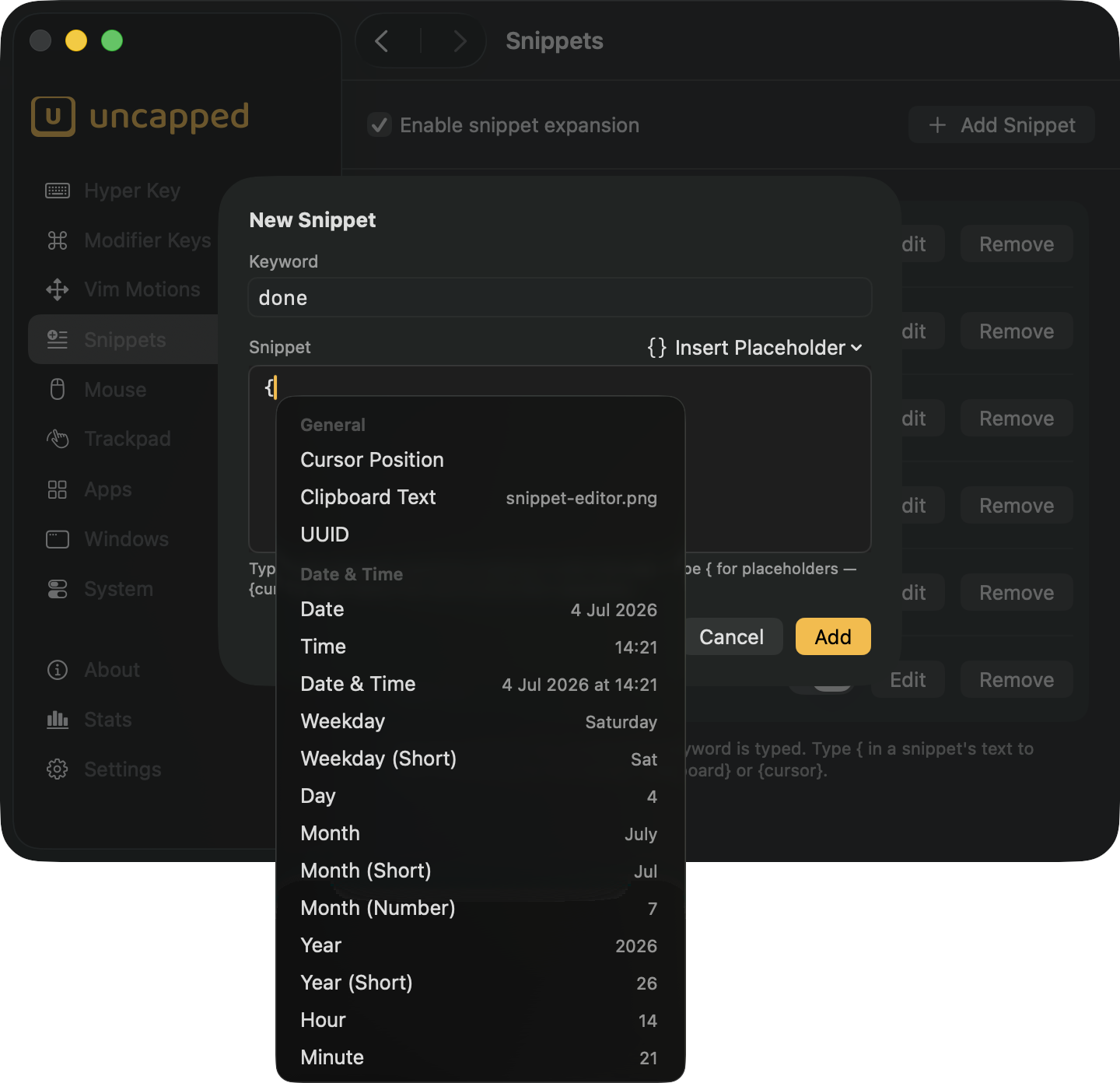
Inside the snippet text, type { and a picker appears right at your cursor, listing every
placeholder with a live preview of what it will insert. Pick one and it’s dropped in for you.
Prefer a button? The Insert Placeholder menu above the text does the same thing. Valid
placeholders are tinted in the app’s accent color as you type, so you can see at a glance that
one will resolve.
The full list
General
| Placeholder | Inserts |
|---|---|
{cursor} | Where the text cursor lands after the snippet expands — see below. |
{clipboard} | Whatever you last copied. |
{uuid} | A brand-new unique identifier. |
Date & Time
| Placeholder | Inserts (example) |
|---|---|
{date} | The date — 4 Jul 2026 |
{time} | The time — 6:17 PM |
{datetime} | Date and time together |
{weekday} | Day of the week — Saturday |
{weekdayShort} | Short weekday — Sat |
{day} | Day of the month — 4 |
{month} | Month name — July |
{monthShort} | Short month — Jul |
{monthNumber} | Month as a number — 7 |
{year} | Full year — 2026 |
{yearShort} | Two-digit year — 26 |
{hour} | Hour, two digits — 18 |
{minute} | Minute, two digits — 05 |
The date and time pieces are separate on purpose: mix them to build any format you like.
{year}-{monthNumber}-{day} gives 2026-7-4; {hour}:{minute} gives 18:05. Every value
follows your Mac’s language and region settings. Anything in braces that isn’t a real
placeholder is left exactly as you typed it.
Placing the cursor
{cursor} is special: it doesn’t insert any text, it marks where the cursor should end up
after expansion. A snippet like this —
Best,
{cursor}
Alex
— drops your cursor onto the middle line, ready to type, instead of leaving it at the very
end. It’s perfect for reply templates and code where you always type in the same spot. If a
snippet has several {cursor} markers, the first one wins.
Editing, disabling and removing
Each snippet has a row on the main screen showing its keyword and a preview of its text.
- Edit reopens the editor to change the keyword or the text.
- The switch on each row turns that one snippet on or off, leaving the rest untouched — useful for keeping a snippet around without it firing for a while.
- Remove deletes it. Uncapped asks for confirmation first, since removing a snippet also removes it on every Mac you sync with.
How expansion works
For the technically curious. When you finish typing a keyword, Uncapped deletes it with the right number of backspaces, then pastes the expansion in its place (briefly borrowing and then restoring your clipboard). Because it works by pasting, expansions land reliably in just about any app — native or web-based. A couple of consequences worth knowing:
- Fixing a typo still works. If you mistype a keyword, backspace, and retype it, Uncapped still recognises it — it follows your edits as you make them.
- Password fields are safe. macOS hides your typing from apps like Uncapped while you’re in a secure field, so keywords never expand where a password goes.