Settings
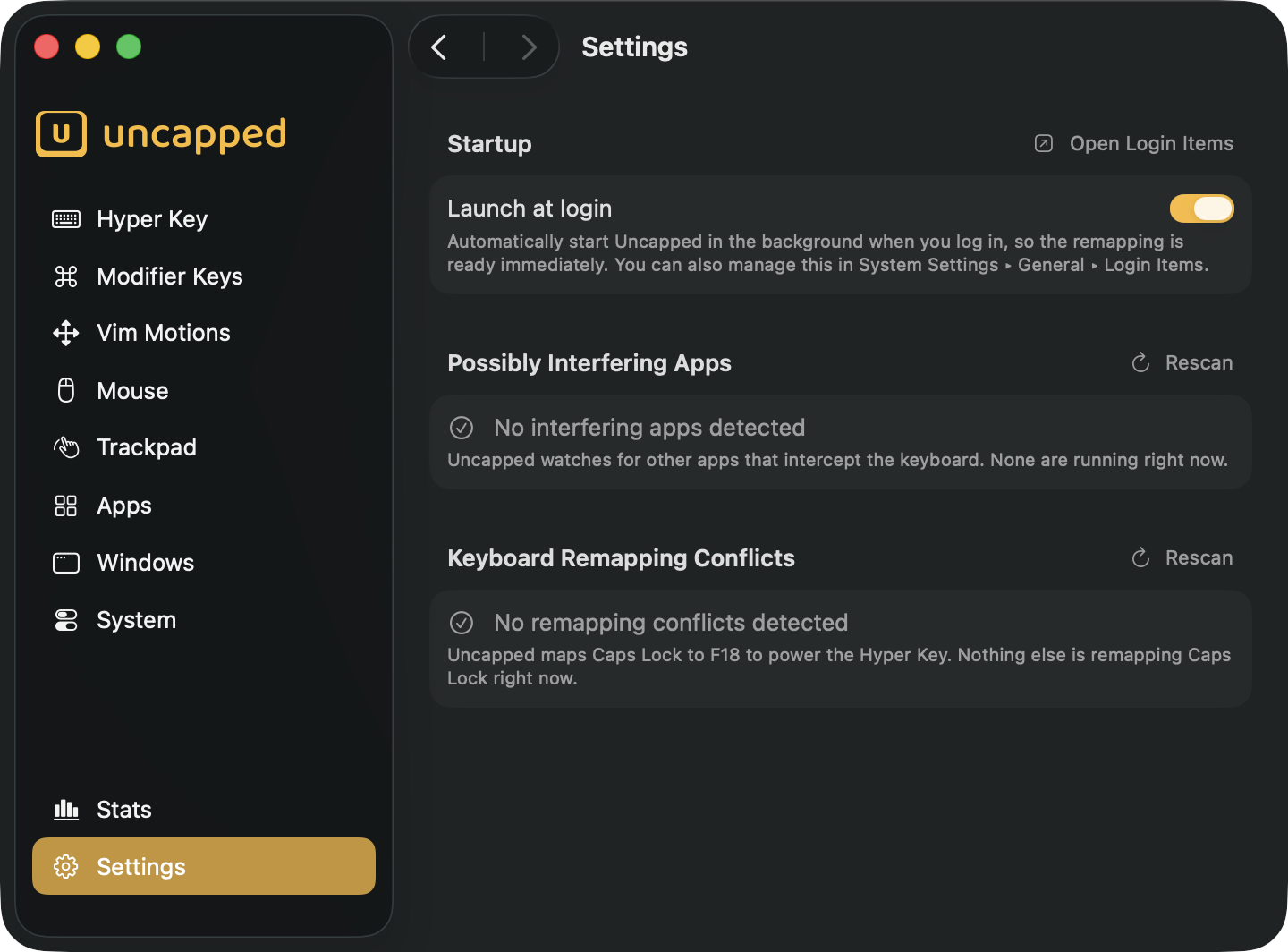
The Settings screen holds Uncapped’s app-wide preferences — the handful of options that aren’t tied to any single remapping feature. It’s also where Uncapped keeps an eye out for trouble: two built-in “watchers” that point out other software which might be fighting Uncapped for your keyboard, so when a shortcut misbehaves you have somewhere to look first.
Startup
The Startup section controls whether Uncapped is ready the moment you sit down at your Mac.
Launch at login
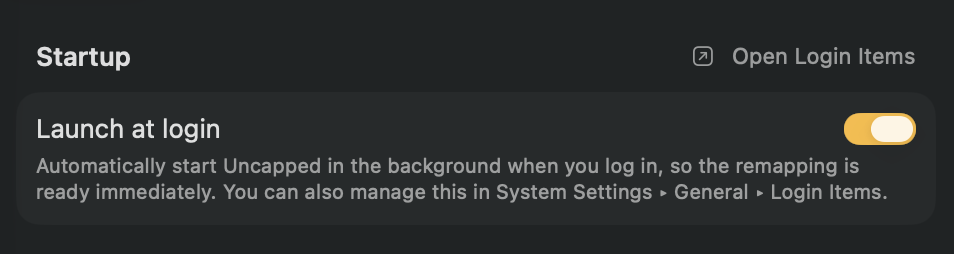
Turn Launch at login on to have Uncapped start by itself — quietly, in the background —
every time you log in to your Mac. That way your remapping is live immediately and you never
have to remember to open the app first. As the screen puts it, it will “Automatically start
Uncapped in the background when you log in, so the remapping is ready immediately.”
This setting is off until you turn it on. The first time you enable it, macOS may ask you
to confirm — that’s normal. You can also manage it later from System Settings ▸ General ▸
Login Items, and the Open Login Items button at the top-right of the Startup section
takes you straight there.
SMAppService API rather than the old login-items list. The system — not Uncapped — is the
source of truth for this setting, which is why turning it on or off in System Settings is
always reflected here, and vice versa.Possibly Interfering Apps
Some other apps — keyboard customizers, text expanders, automation tools — also handle keyboard input before it reaches the rest of the system. When one of them claims a key that Uncapped is trying to remap, the two can end up fighting over the same press, and a shortcut may behave unexpectedly. The Possibly Interfering Apps section surfaces those apps by name, so a misbehaving shortcut has an obvious suspect.
When nothing is interfering, you’ll see No interfering apps detected and the note that
“Uncapped checks for other apps that handle the keyboard. None are running right now.”
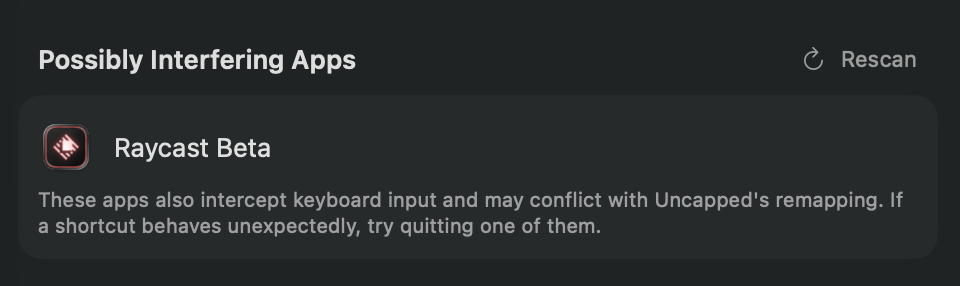
If Uncapped does find any, it lists each one with its icon and name, along with the reminder
that “These apps also handle keyboard input and may conflict with Uncapped’s remapping. If
a shortcut behaves unexpectedly, try quitting one of them.” The Rescan button at the
top-right re-checks at any time — handy after you quit one of the listed apps.
For step-by-step help when one of these apps is causing problems, see Troubleshooting ▸ A shortcut fires twice or behaves oddly.
Keyboard Remapping Conflicts
To power the Hyper Key, Uncapped maps your Caps Lock key to F18 deep in the system. If
another tool also remaps Caps Lock, it can quietly overwrite Uncapped’s mapping — and the
Hyper Key stops working even though everything still looks fine in the app. The Keyboard
Remapping Conflicts section catches exactly that situation and points at the likely culprit.
When all is well, you’ll see No remapping conflicts detected and the note that “Uncapped
maps Caps Lock to F18 to power the Hyper Key. Nothing else is remapping Caps Lock right now.”
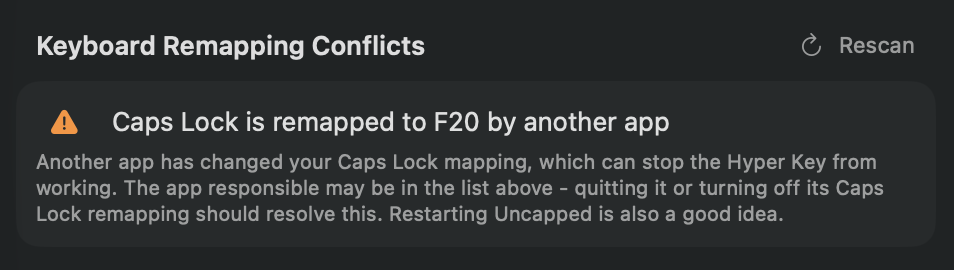
If a conflict is found, Uncapped flags it with a warning and the explanation that “Another app
has changed your Caps Lock mapping, which can stop the Hyper Key from working. The app
responsible may be in the list above - quitting it or turning off its Caps Lock remapping
should resolve this. Restarting Uncapped is also a good idea.” As with the previous section,
the Rescan button re-checks on demand.
UserKeyMapping — both the
global mapping and the per-device mappings keyed by each keyboard’s vendor and product ID — and
compares what it finds against the mapping it expects (Caps Lock → F18 while the Hyper Key
is on, and nothing while it’s off). Anything else remapping the same key is reported as a
conflict.For the full walkthrough of resolving these, see Troubleshooting ▸ The Hyper Key stopped working.