Mouse
Most mice have more buttons than you actually use — a middle button under the scroll wheel, and often a pair of side buttons your thumb can reach. Uncapped lets you put those spare buttons to work: press one and, instead of an ordinary click, it can type a keyboard shortcut for you, snap a window into place, run a system action, or trigger a trackpad gesture.
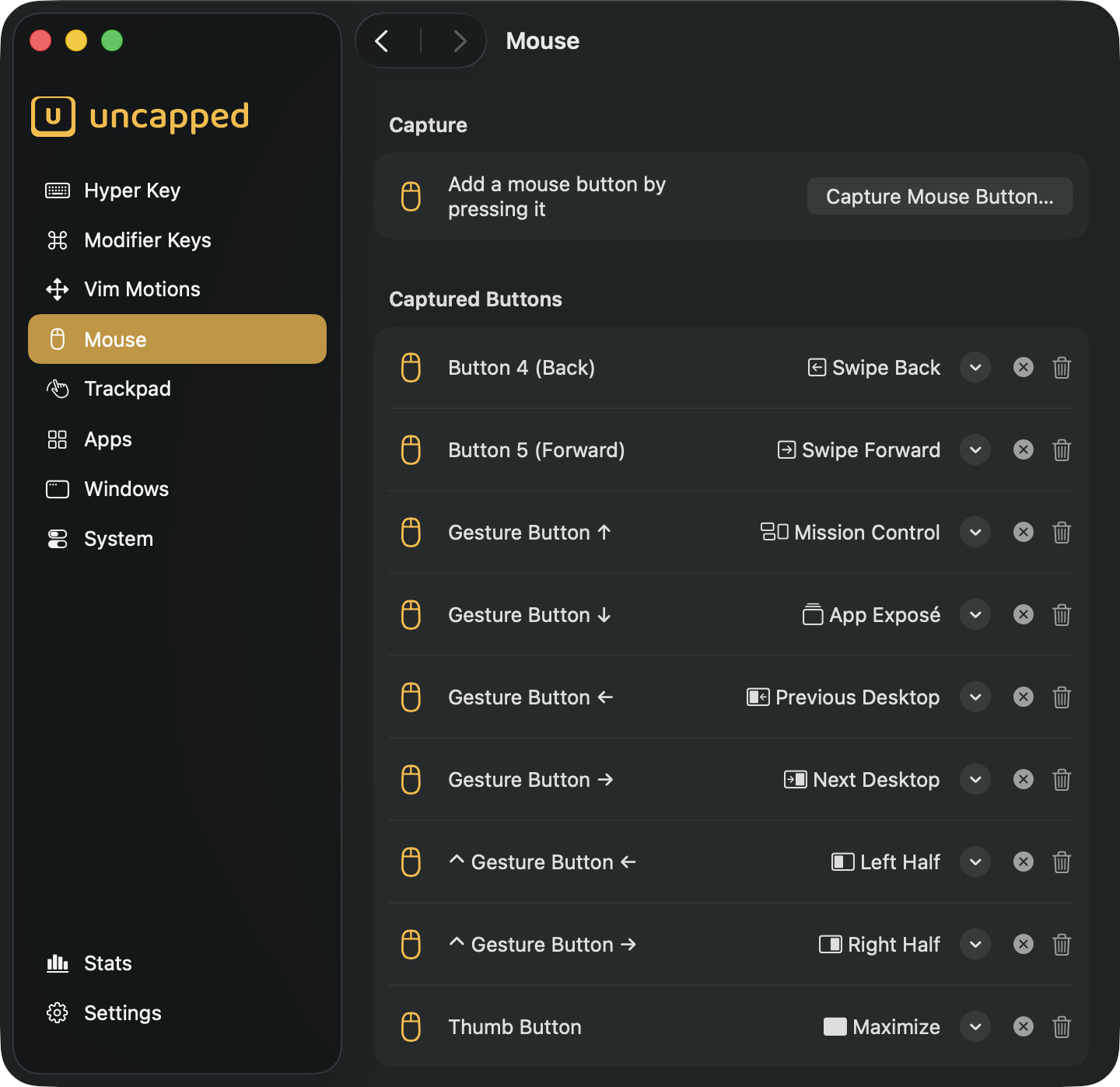
What you can remap
You teach Uncapped a button by capturing it, then assigning it something to do. A captured button can fire any one of four kinds of action:
- A keyboard shortcut — Uncapped types the key combination for you, so a button can stand in for any shortcut you’d normally press on the keyboard.
- A window action — move or resize the window you’re working in (snap it to the left half, maximize it, and so on).
- A system action — a macOS action like adjusting the volume or locking the screen.
- A trackpad action — a gesture such as Mission Control or swiping back, even if you’re using a mouse rather than a trackpad.
The full lists of available actions live on the Windows, System and Trackpad pages — this page covers how to capture a button and point it at one of them.
Capturing a mouse button
Click Capture Mouse Button… and Uncapped starts listening. Press the button you want
to use and it’s added to the list below, ready to be assigned. If you change your mind while
it’s listening, click Cancel.
You can capture the middle button (a press of the scroll wheel) and any side buttons your mouse has. The ordinary left and right clicks can’t be captured — they always keep working as normal clicks so your everyday clicking is never affected.
Captured buttons are listed by name: Middle Button, Button 4 (Back) and
Button 5 (Forward) for the common side buttons, and Button 6, Button 7 and so on for
any further buttons.
Some third-party mice expose extra buttons of their own — those can be captured the same way, just by pressing them while Uncapped is listening.
Modifiers and movement make separate triggers
A button on its own is only the start. While you press it, you can also hold one or more
modifier keys (⌘, ⌥, ⌃, ⇧) and/or move the mouse in a direction before letting
go — and each combination becomes its own trigger with its own assignment.
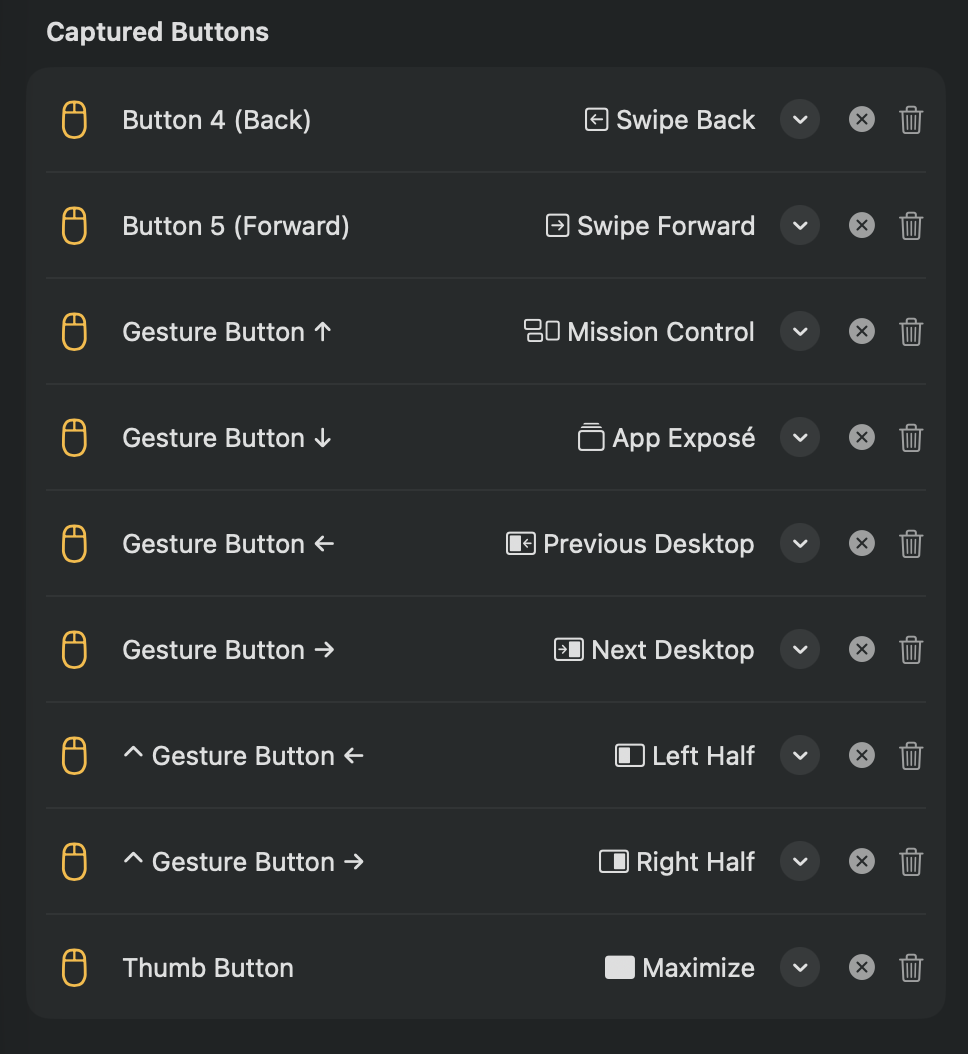
So from a single middle button you could set up several independent actions:
Middle Button— a plain press.⌘ Middle Button— held together with Command.Middle Button ↑— pressed while flicking the mouse upward.
Movement is recognised in four directions — up ↑, down ↓, left ← and right → — based
on the overall direction you moved before releasing; a small, incidental movement still
counts as a plain press. Matching is exact: a press only fires the trigger whose
modifiers and movement line up precisely, so the three examples above never get confused for
one another.
Assigning an action
Each captured button gets a row in the Captured Buttons list. Open its Assign…
menu to choose what it does.
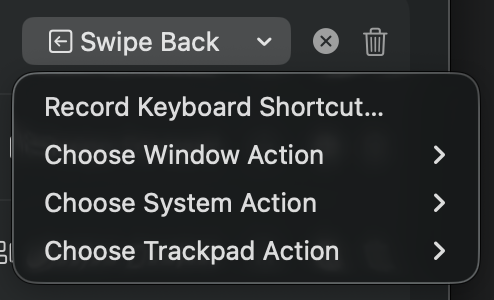
Keyboard shortcut
Choose Record Keyboard Shortcut…, then press the key combination you want the button
to type — for example ⌃⌥T. From then on, pressing the button sends that shortcut to
whatever app you’re using.
Window action
Choose Window Action opens a submenu of window-management actions (halves, quarters,
maximize, and more). The button applies the action to whichever window is in front. See the
Windows page for the complete list.
System action
Choose System Action lets the button perform a macOS system action — for example
Volume Up, Volume Down or Lock Screen. The full set is described on the
System page.
Trackpad action
Choose Trackpad Action assigns a trackpad-style gesture, so a mouse button can do
things normally reserved for a trackpad. The Trackpad page lists them all.
To swap a button’s assignment, just pick a different one from the menu. To clear it while
keeping the button in the list, use the clear (✕) button next to the assignment; to
remove the button entirely, use the trash button at the end of the row.
How it works
A captured button that has no assignment behaves completely normally — its clicks pass straight through to the app under your cursor. Capturing a button doesn’t take it over until you give it something to do.
You’re also free to reuse a shortcut that’s already one of Uncapped’s own hotkeys — pointing
a mouse button at it is simply another way to trigger that same app, window action or system
action. When you do, the row shows a small Triggers: … caption naming what the shortcut
runs, so you can see at a glance what the button will do.
Middle Button ↑), Uncapped can’t know which trigger you meant until you let go — so it
waits for the release to decide. A press that doesn’t match any of your triggers is then
delivered as an ordinary click at the moment you release. Buttons with no movement trigger
aren’t affected and respond immediately on press.