Modifier Keys
The Modifier Keys screen gives you two extra “shortcut” keys — the Meh Key and the Phew Key. Each turns one key on your keyboard into a single key that acts like several modifiers held down at once, so you can build your own shortcuts that don’t clash with anything else. Think of them as lighter cousins of the Hyper Key, handy when you want more than one conflict-resistant key to play with.
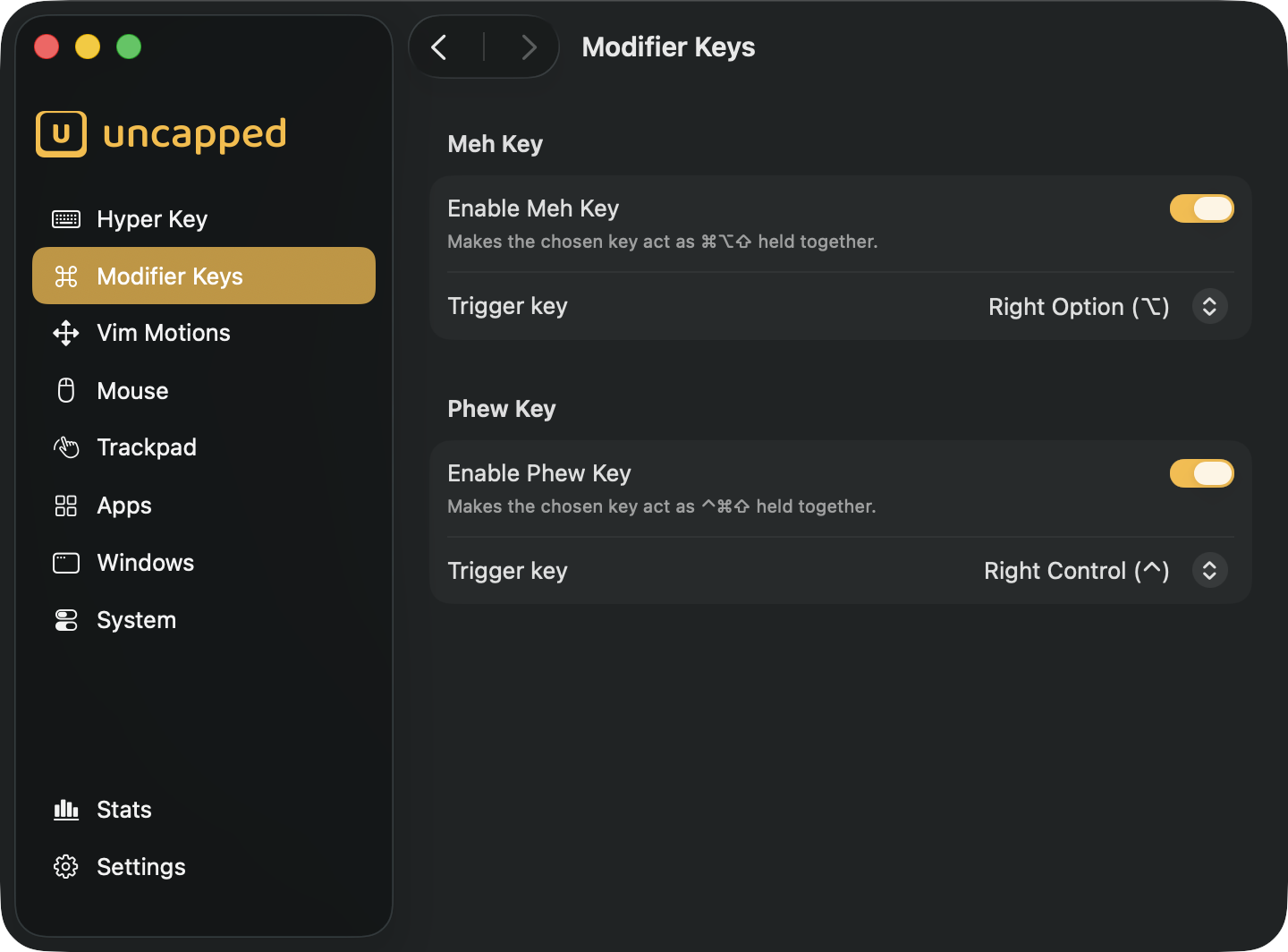
What the Meh and Phew keys are
On a Mac, the modifier keys are ⇧ Shift, ⌃ Control, ⌥ Option and ⌘ Command. Normally
you press one or two of them with another key to trigger a shortcut. The Hyper Key takes this
to the extreme: it makes one key act as all four modifiers at once (⇧⌃⌥⌘), giving you a
key that no app’s shortcuts ever use.
The Meh and Phew keys work the same way, but each holds down three of the four modifiers instead of all four — a “Hyper Key, minus one”:
- Meh Key acts as
⌘⌥⇧(Command+Option+Shift). - Phew Key acts as
⌃⌘⇧(Control+Command+Shift).
Because almost nothing uses three modifiers held together either, shortcuts you build on top of these stay nearly conflict-free — and they give you a second and third “personal” key alongside the Hyper Key, each one you can pair with any other key to invent shortcuts of your own.
Both keys are off until you turn them on.
Phew is a name we coined for its companion chord: a second,
equally easy-to-remember three-modifier combo — pick whichever short interjection sticks in your
head. Under the hood, while you hold the trigger Uncapped simply folds that key’s modifier flags
into whatever you press, and swallows the trigger itself — so it never behaves as a plain
modifier, and there are no tap or hold actions to configure (unlike the Hyper Key).Meh Key
The Meh Key block lets you switch the Meh Key on and choose which physical key triggers it.
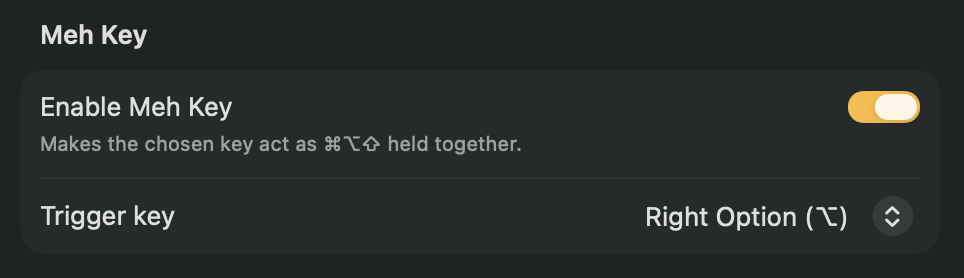
Enable Meh Key
Flip Enable Meh Key on to start using it (it’s off until you turn it on). While it’s
active, your chosen trigger key acts as ⌘⌥⇧ held together.
Choosing the trigger key
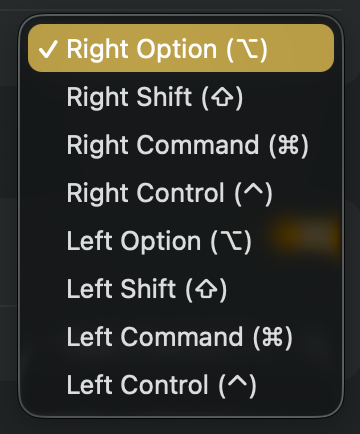
The Trigger key menu picks which physical key becomes the Meh Key. It defaults to
Right Option (⌥), and you can choose any of these:
Right Option (⌥)(default)Right Shift (⇧)Right Command (⌘)Right Control (⌃)Left Option (⌥)Left Shift (⇧)Left Command (⌘)Left Control (⌃)
The menu is greyed out until the key is enabled. Picking one of the right-hand keys (like
Right Option) is usually best — it keeps the matching left-hand key working as a normal
modifier.
Phew Key
The Phew Key block works exactly like the Meh Key block — its own toggle and its own trigger.
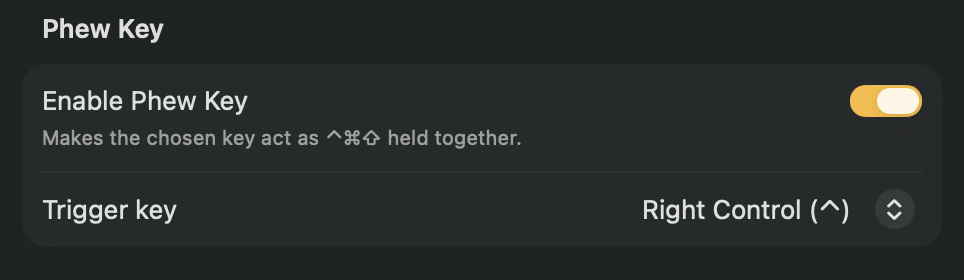
Enable Phew Key
Flip Enable Phew Key on to start using it (also off until you turn it on). While it’s
active, your chosen trigger key acts as ⌃⌘⇧ held together.
Choosing the trigger key
The Trigger key menu offers the same eight keys listed under the Meh Key above. For the
Phew Key it defaults to Right Control (⌃). As before, the menu is greyed out until the key is
enabled.
Each key needs its own trigger
Every one of these keys has to have a different trigger — and that includes the Hyper Key. Two keys can’t share a physical trigger, because whichever one grabs the key first would swallow it before the other ever saw it.
If you pick a key that’s already taken, Uncapped shows a Trigger key already in use alert
explaining which key is using it and reverts your choice, so you never end up with two keys
fighting over the same trigger.
Caps Lock: it isn’t a
modifier, so a Hyper Key set to Caps Lock can never collide with a Meh or Phew trigger.