Hyper Key
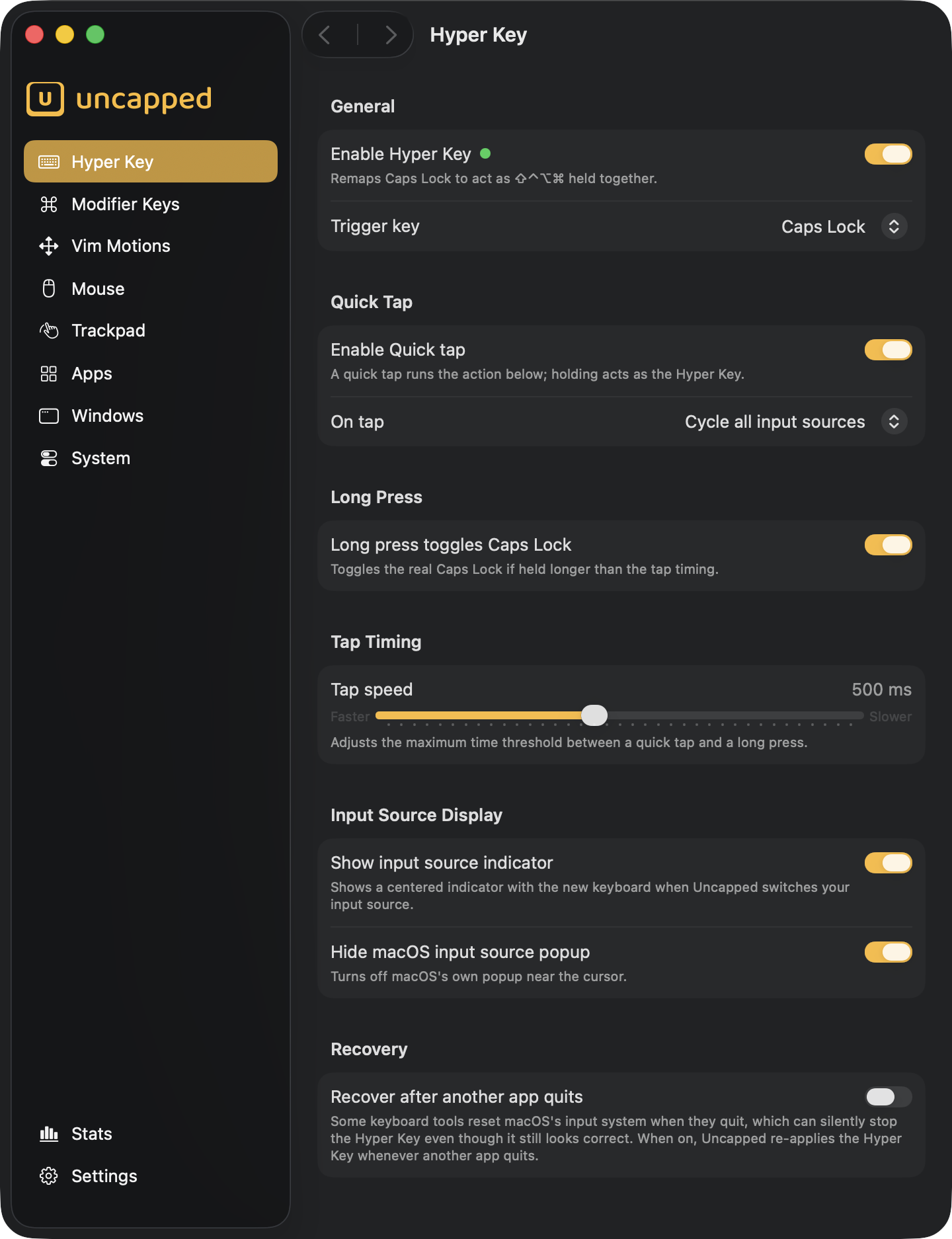
The Hyper Key turns one key on your keyboard into a single “super” key you can combine with any other key to build shortcuts that never clash with anything else.
What is the Hyper Key?
On a Mac, the four modifier keys are ⇧ Shift, ⌃ Control, ⌥ Option and ⌘ Command.
Normally you press one or two of them together with another key to trigger a shortcut.
The Hyper Key is a single key that acts as all four of those modifiers pressed at
once — ⇧⌃⌥⌘. Because virtually no app uses a shortcut that holds down all four
modifiers together, any shortcut you build on top of the Hyper Key is conflict-free:
it won’t collide with your apps or with macOS. By default, Uncapped turns your Caps Lock
key into the Hyper Key.
In plain terms: it gives you a brand-new key that’s yours alone, so you can invent your own
shortcuts (Hyper Key + M for Mail, Hyper Key + T for Terminal, and so on) without ever
stepping on a shortcut that already exists.
Caps Lock key — was popularized by
developer Brett Terpstra. Caps Lock is ideal for the job: it sits right on the home row,
is easy to reach, and almost nobody uses it for typing capitals.Turning it on
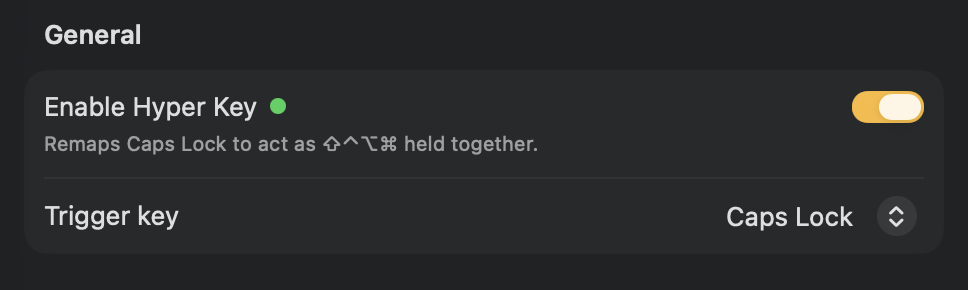
The General section is where you switch the Hyper Key on and pick which key triggers it.
Enable Hyper Key
Flip Enable Hyper Key on to start using it. When it’s active you’ll see a green dot next
to the label. While it’s on, your chosen trigger key (Caps Lock by default) acts as ⇧⌃⌥⌘
held together.
This setting is off until you turn it on.
Choosing your trigger key
The Trigger key menu lets you choose which physical key becomes the Hyper Key. Most
people keep Caps Lock, but you can pick any of these:
Caps Lock(default)Left Shift (⇧)Right Shift (⇧)Left Control (⌃)Right Control (⌃)Left Option (⌥)Right Option (⌥)Left Command (⌘)Right Command (⌘)
Picking a left/right key (for example Right Command) is handy if you’d rather keep
Caps Lock working normally.
Quick Tap
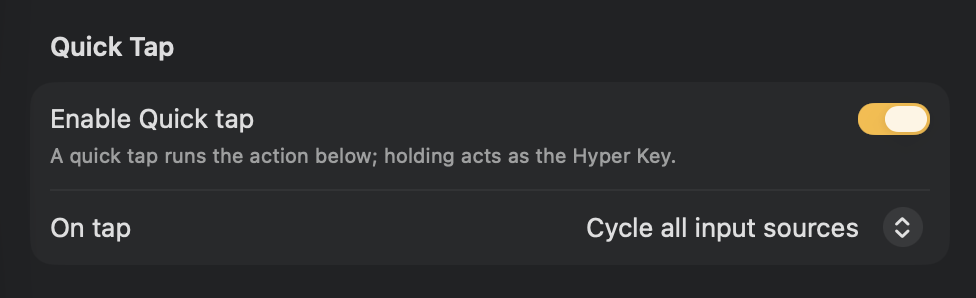
By itself, the Hyper Key only does something when you hold it and press another key. The Quick Tap feature gives a quick, standalone tap of the key its own job — so a quick tap runs an action, while holding still works as the Hyper Key.
Turn it on with Enable Quick tap (off by default), then choose what a tap should do.
On-tap actions
The On tap menu offers four actions:
Toggle Caps Lock— behaves like a normal Caps Lock key, switching capital letters on and off. (This is the default.)Switch to and from US— flips your keyboard between the US (English) layout and your other chosen language. Tap once to switch over, tap again to switch back.Cycle all input sources— steps through every keyboard layout/language you’ve enabled, one tap at a time.Send Escape— sends anEsckeypress. Useful on keyboards that have no physical Escape key.
Long Press
Long press toggles Caps Lock (off by default) brings back the real Caps Lock when you need it. With this on, holding the trigger key down — longer than the tap timing below — toggles actual Caps Lock on or off.
This pairs with Quick Tap: a quick tap runs your chosen tap action, while a deliberate hold toggles Caps Lock. The tap-timing threshold (next section) is what separates a “tap” from a “hold”.
Tap Timing
Tap speed
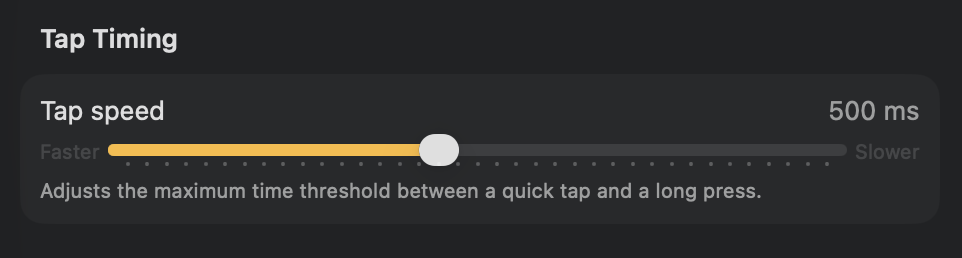
The Tap speed slider sets the dividing line between a quick tap and a longer hold.
It ranges from 100 ms (Faster) to 1000 ms (Slower), and defaults to 500 ms.
- Drag toward
Fasterfor a shorter window — taps need to be snappier, and holds register sooner. - Drag toward
Slowerfor a more forgiving window — you get more time before a press counts as a hold.
If quick taps are being mistaken for holds (or vice versa), this is the slider to adjust.
Input Source Display
If you type in more than one language, Uncapped can show you — clearly and instantly — which keyboard you’ve just switched to. This section has two related options.
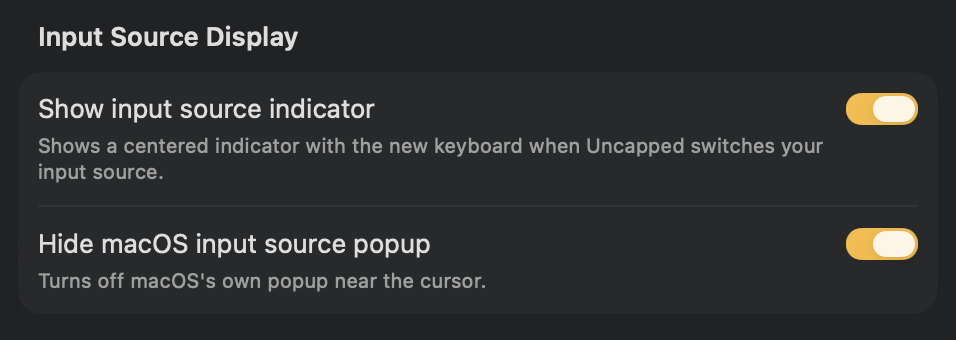
Show input source indicator
When this is on (it is on by default), every time Uncapped switches your keyboard language it briefly shows a small indicator in the middle of your screen with the new layout’s icon and name — for example “English” or “简体中文”. It appears on the screen your mouse is on and fades away after about a second.
Why it’s useful: when you switch languages with a quick tap, you don’t have to glance up at the menu bar to check which keyboard is active — the indicator tells you right where you’re looking. If you’d rather not see it, turn it off.
Hide macOS input source popup
macOS has its own little popup that appears near your text cursor whenever the keyboard language changes. Turn Hide macOS input source popup on (it’s off by default) to suppress that native popup.
The two settings work together: leave this off and you may see two indicators at once (Uncapped’s centered one and the macOS one near your cursor); turn it on so you only see Uncapped’s. If you prefer the native macOS popup, simply leave this off and turn off Uncapped’s indicator above instead.
Recovery
Recover after another app quits
Some other keyboard utilities, when you quit them, quietly reset the part of macOS that handles your keyboard — and that can switch the Hyper Key off without any warning, even though everything in Uncapped still looks correct. The result is confusing: the Hyper Key appears enabled, but pressing it does nothing.
With Recover after another app quits turned on (it’s off by default), Uncapped watches for other apps quitting and quietly re-applies the Hyper Key each time, so it keeps working without you having to toggle anything.
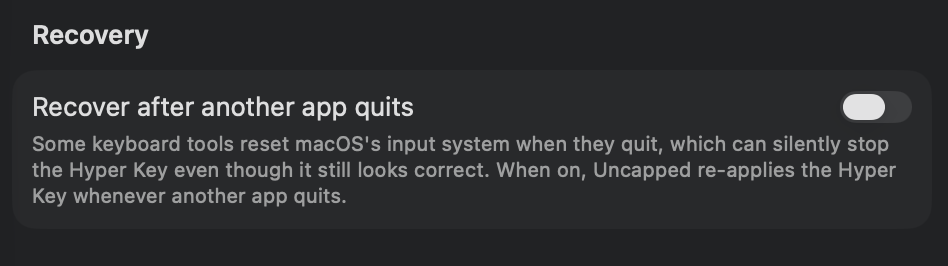
hidutil key remap and its keyboard event tap) a moment after any app
terminates. Re-applying is cheap and harmless when nothing was actually broken, so it’s
safe to leave on if you run other keyboard tools alongside Uncapped.