Clipboard
The Clipboard screen does two jobs. It can strip the formatting from text you copy — either automatically the moment you copy it, or on demand with a shortcut — so what you paste is always clean plain text, never someone else’s fonts and colors. And it can keep a history of what you copy, so the thing you copied five minutes ago isn’t gone just because you copied something else since.
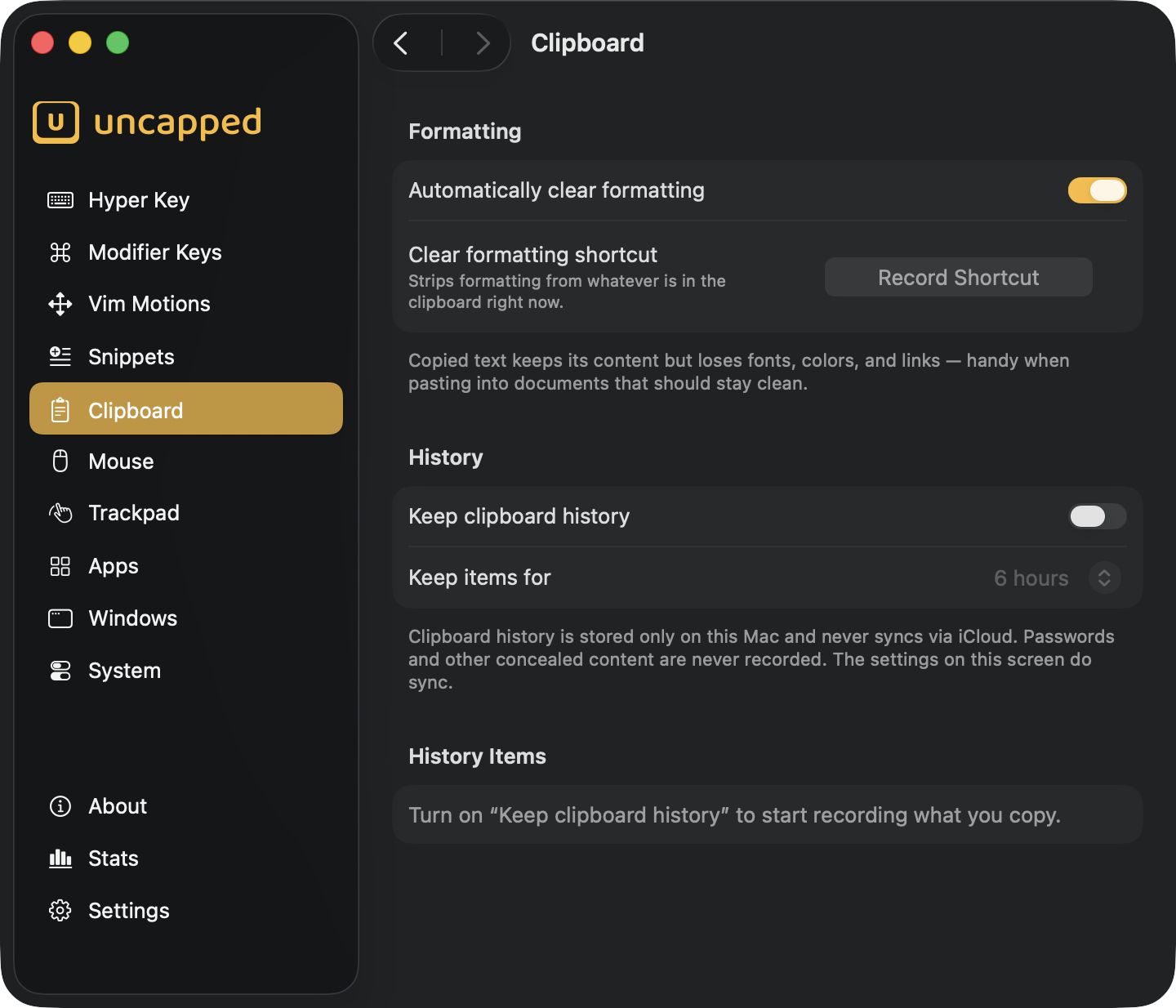
Both parts are off until you turn them on — Uncapped doesn’t touch or record your clipboard unless you ask it to.
Clearing formatting automatically
The Automatically clear formatting toggle, off by default, converts anything you copy
to plain text right away. Copied text keeps its content but loses fonts, colors, and links —
handy when pasting into documents that should stay clean. Copy a headline from a web page,
paste it into your notes, and it lands in your style instead of the website’s.
A few things it deliberately leaves alone:
- What’s already on the clipboard. It only affects copies made after you turn it on.
- Files. Copying files in Finder is untouched — only text is converted.
- Passwords. Anything a password manager marks as concealed is never modified or read.
Clearing formatting on demand
If you’d rather keep formatting most of the time and strip it only when you choose, assign a
key combination to Clear formatting shortcut. Pressing it strips formatting from
whatever is in the clipboard right now — copy normally, press the shortcut, then paste clean.
No shortcut is assigned out of the box. Click the recorder and press the combination you
want (it needs at least one modifier — ⌘, ⌥, ⌃, or ⇧); click the recorder’s clear
button to remove it again. The shortcut works system-wide, from any app, even when Uncapped
is in the background. Each press shows a brief on-screen confirmation:
| Message | Meaning |
|---|---|
Clipboard formatting cleared | There was rich text, and it’s now plain. |
Clipboard is already plain text | Nothing to do — the text had no formatting. |
No text in the clipboard | The clipboard holds something that isn’t text (a file, an image). |
Clipboard is empty | There’s nothing on the clipboard at all. |
If the combination you record is already used by another Uncapped feature — an app shortcut,
a window action, a system command, or a trackpad gesture — Uncapped asks before taking it
over. Choose Reassign to move the combination to the clipboard, or Cancel to
keep things as they are.
Clipboard history
The Keep clipboard history toggle, off by default, records the plain text of what you
copy so you can get it back later. Once it’s on, every piece of text you copy is added to
the list at the bottom of the screen — copy something else, and the earlier item is still
there waiting.
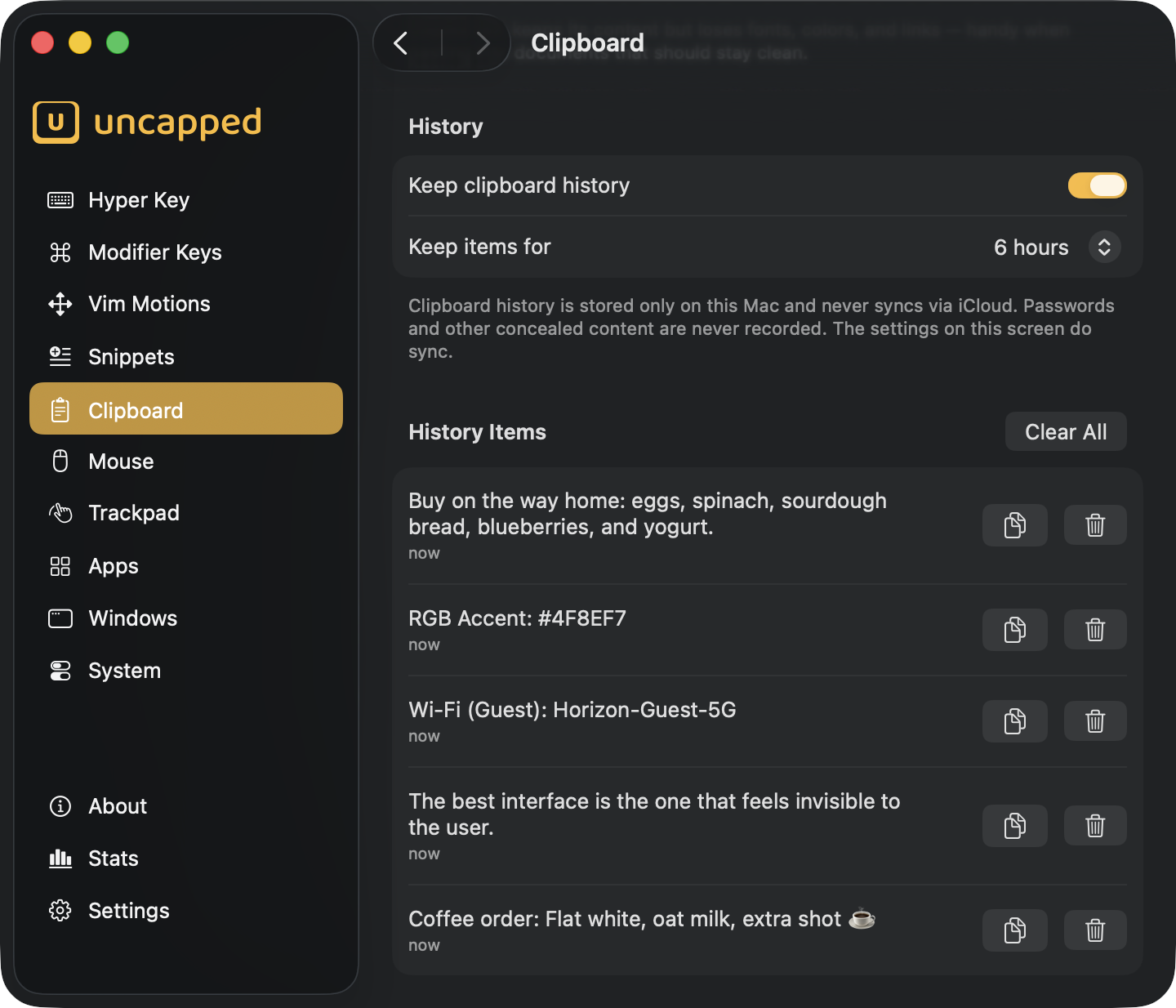
Keep items for sets how long items stay before they’re removed automatically. It
offers 6 hours, 12 hours, 1 day, 2 days, 3 days, 4 days, 5 days, 6 days, and
7 days; the default is 1 day. The picker is grayed out until history is turned on.
Some things are never recorded:
- Passwords and other concealed content — anything a password manager or secure field marks as hidden.
- Files and images — only text is kept.
- Duplicates — copy the same text twice and it’s stored once, moving back to the top of the list with a fresh timestamp.
The history list
The History Items section lists what’s been captured, newest first. Each row shows the
text (trimmed to two lines), when it was copied, and two buttons: one copies the item back to
the clipboard so you can paste it anywhere, the other removes just that item.
Clear All at the top of the list wipes the whole history at once; Uncapped asks for
confirmation first, since the items are removed from this Mac for good. Before you enable
history the list simply says “Turn on “Keep clipboard history” to start recording what you
copy.”, and once it’s on but nothing has been copied yet, “No items yet — text you copy
will show up here.”
Privacy & syncing
Clipboard history is stored only on this Mac and never syncs via iCloud. It lives in its own local database, separate from the one Uncapped syncs, so what you copy can’t leave your machine even though your other Uncapped settings do roam between Macs. The settings on this screen — the two toggles, the retention window, and the shortcut — sync like any other setting; the recorded items themselves never do. Each Mac keeps its own history.
org.nspasteboard.ConcealedType,
TransientType, or AutoGeneratedType markers (used by password managers and other
utilities) are skipped entirely. Unlike Uncapped’s keyboard features, the clipboard needs
no Accessibility permission.