Today
The Today tab is where you’ll spend most of your time in Kyro. It shows the habits that are active for the day — and only those — so you can work through them one by one and see at a glance what’s left. It’s the first tab along the bottom, marked with a calendar icon.
Nothing is scheduled or pre-filled for you: a task simply appears on every day it’s active, and checking it off records that you kept it. A day you didn’t act on stays open — there’s no penalty and nothing to dismiss.
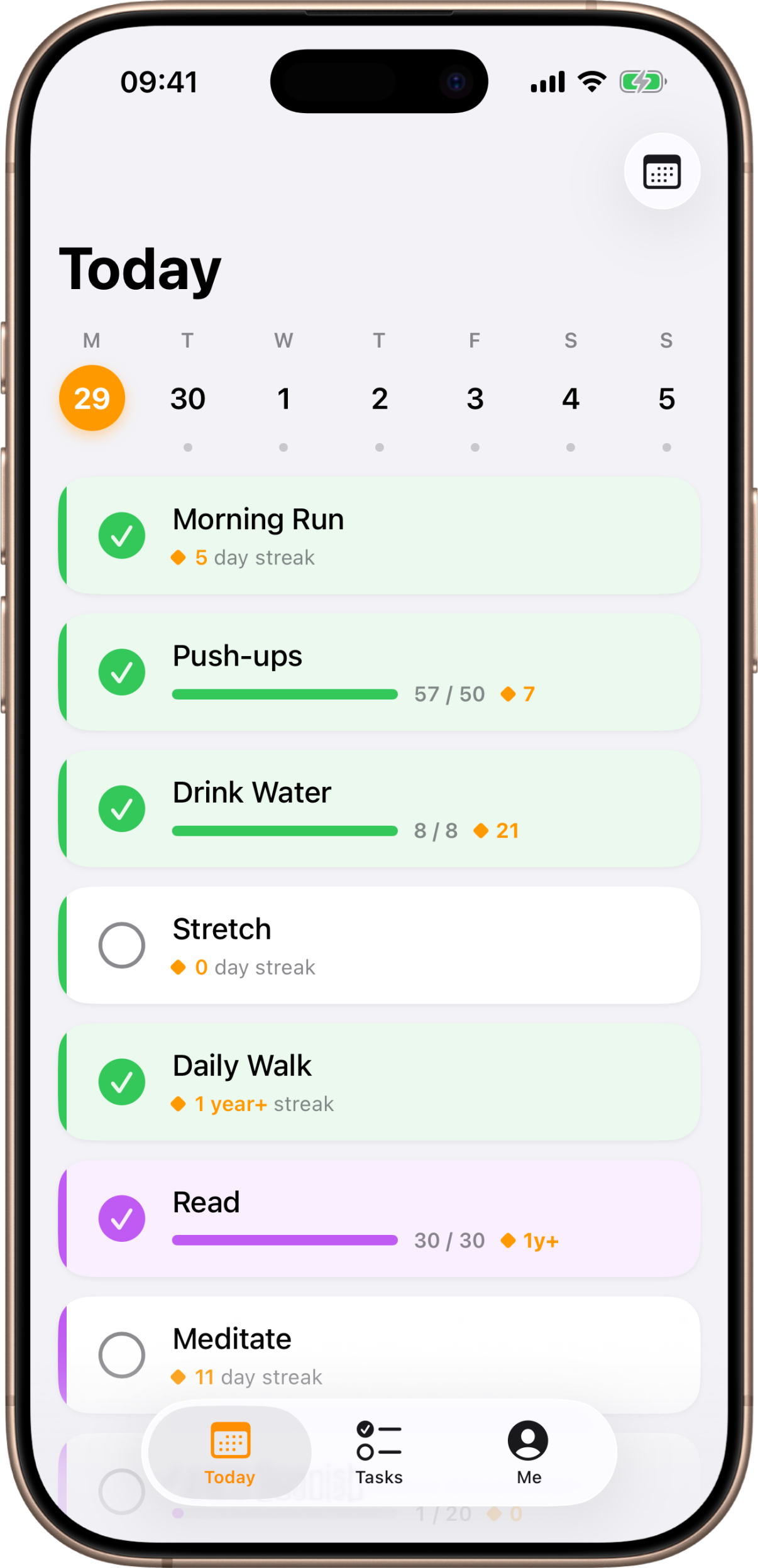
The day list
Each active task is a card. On the left is a colored bar in the task’s own color, then a control to mark it done, the task’s name, and a second line that tracks how you’re doing.
- Tap the circle on the left to mark a simple task done — it fills in with a checkmark in the task’s color. Tap it again to undo. That’s the whole interaction for a done-or-not-done habit.
- Tap anywhere else on the card to open that task’s Statistics — your streaks, this week, and a full history calendar.
Under each simple task, Kyro shows your streak — the number of days in a row you’ve kept
it, like 12 day streak. Once a run passes a year, it reads 1 year+ streak; the exact
number is always on the task’s statistics screen.
If a day has no active tasks, you’ll see “Nothing for This Day” with a reminder to add tasks on the Tasks tab.
Counter tasks
Some habits are about how many, not just done-or-not — pages read, glasses of water, push-ups. These are counter tasks (you choose the type when you create the task), and they work a little differently on Today:
- Instead of a checkbox, tapping the control opens a small counter sheet to log your number for the day.
- The card shows a progress bar with your running total against the goal, like
12 / 50, plus a compact streak.
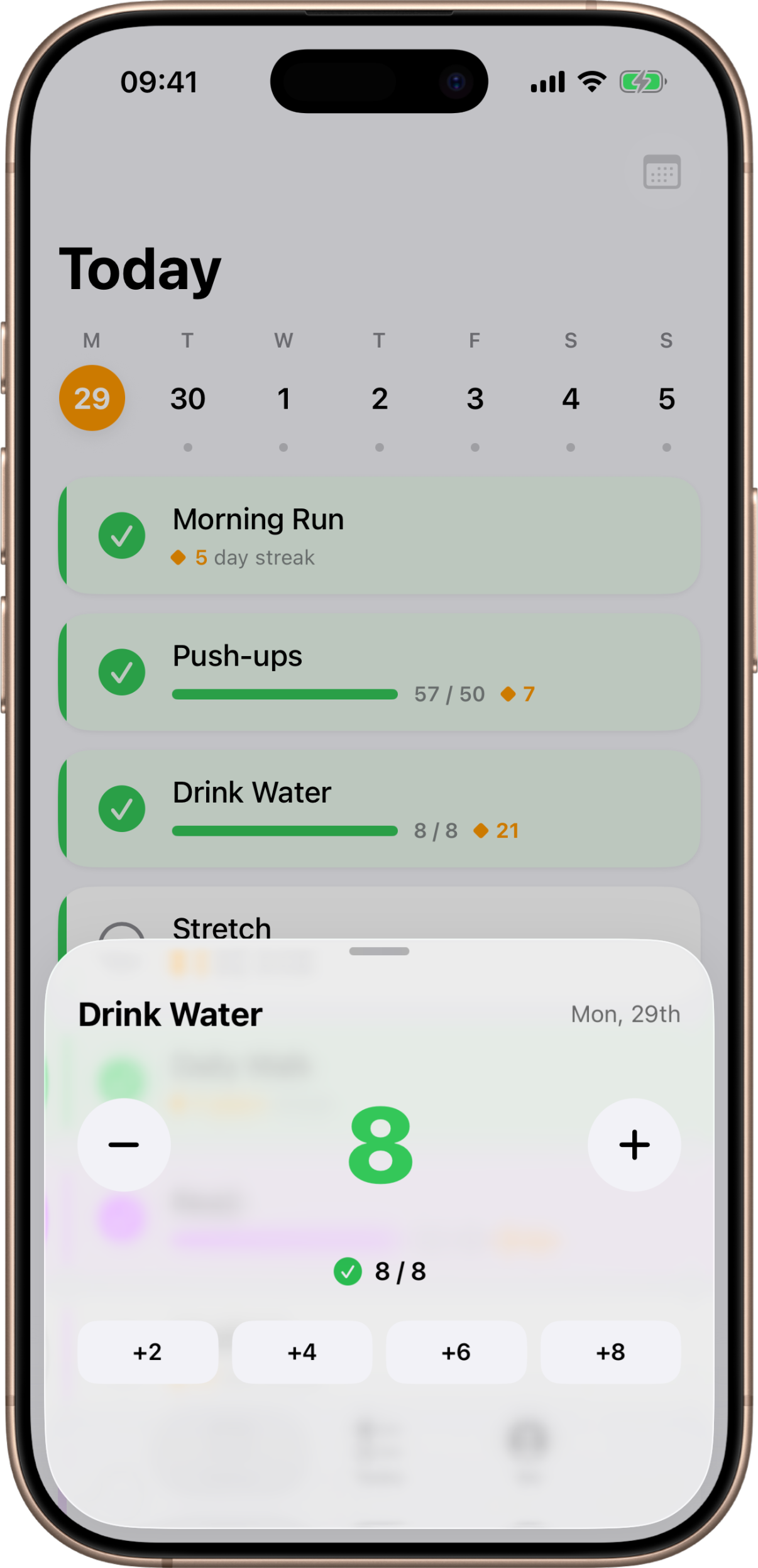
In the counter sheet you’ll find:
- A large current value with − and + buttons that step by one. The count can go from
0up to9999. - Quick-add chips below — handy jumps sized to your goal (roughly a quarter, half, three-quarters, and the full target) so you can reach the goal in a tap or two.
- A
count / targetreadout that turns green with a checkmark once you hit the goal. Overshooting the goal is fine.
A counter day counts as complete once your total reaches the task’s target. Drop the count
back to 0 and the day clears again.
Because a counter records a number and not just a checkmark, it gets an extra screen of its own: Insights charts everything you’ve logged over time and tells you whether you’ve been doing more or less lately.
Moving between days
Under the title is a week strip — a row of seven days you can tap to jump to. Swipe it left or right to page through earlier or later weeks. The currently selected day sits in a filled circle, and today’s date is drawn in your accent color.
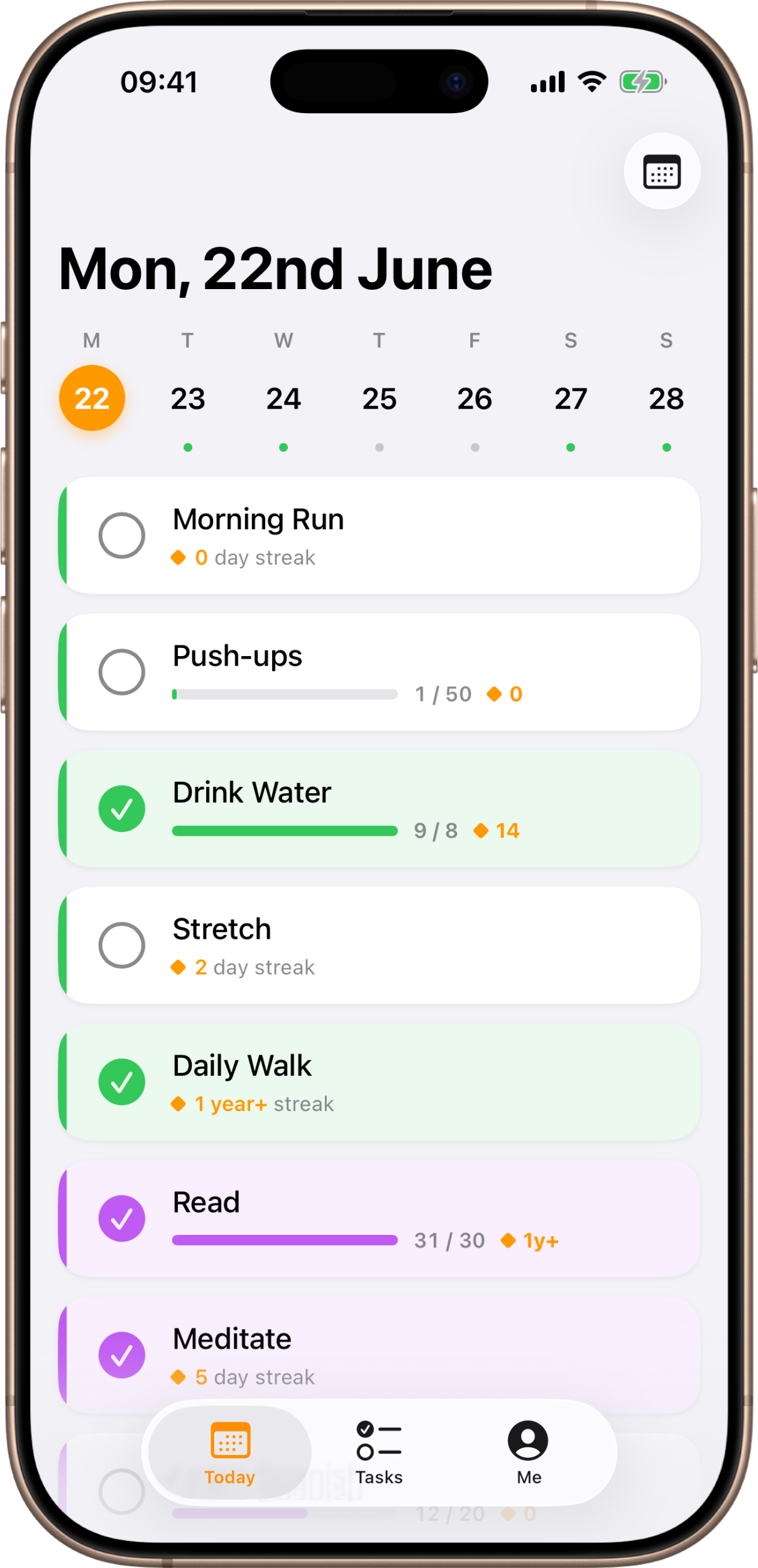
The small dot under each day recaps how that day went:
- Green — every task that was active that day is complete.
- Gray — some (or none) of that day’s active tasks were done.
- No dot — no tasks were active that day, or the day is in the future.
To jump further, tap the calendar button in the top-right corner and pick a date. You can go back as far as your oldest task or your earliest recorded day, but not into the future.
Kyro always opens on the real today. If you’re browsing a past day and leave the app, it returns you to today once the date has actually changed. You can also pull down to refresh to snap back to the current day at any time.