Tasks
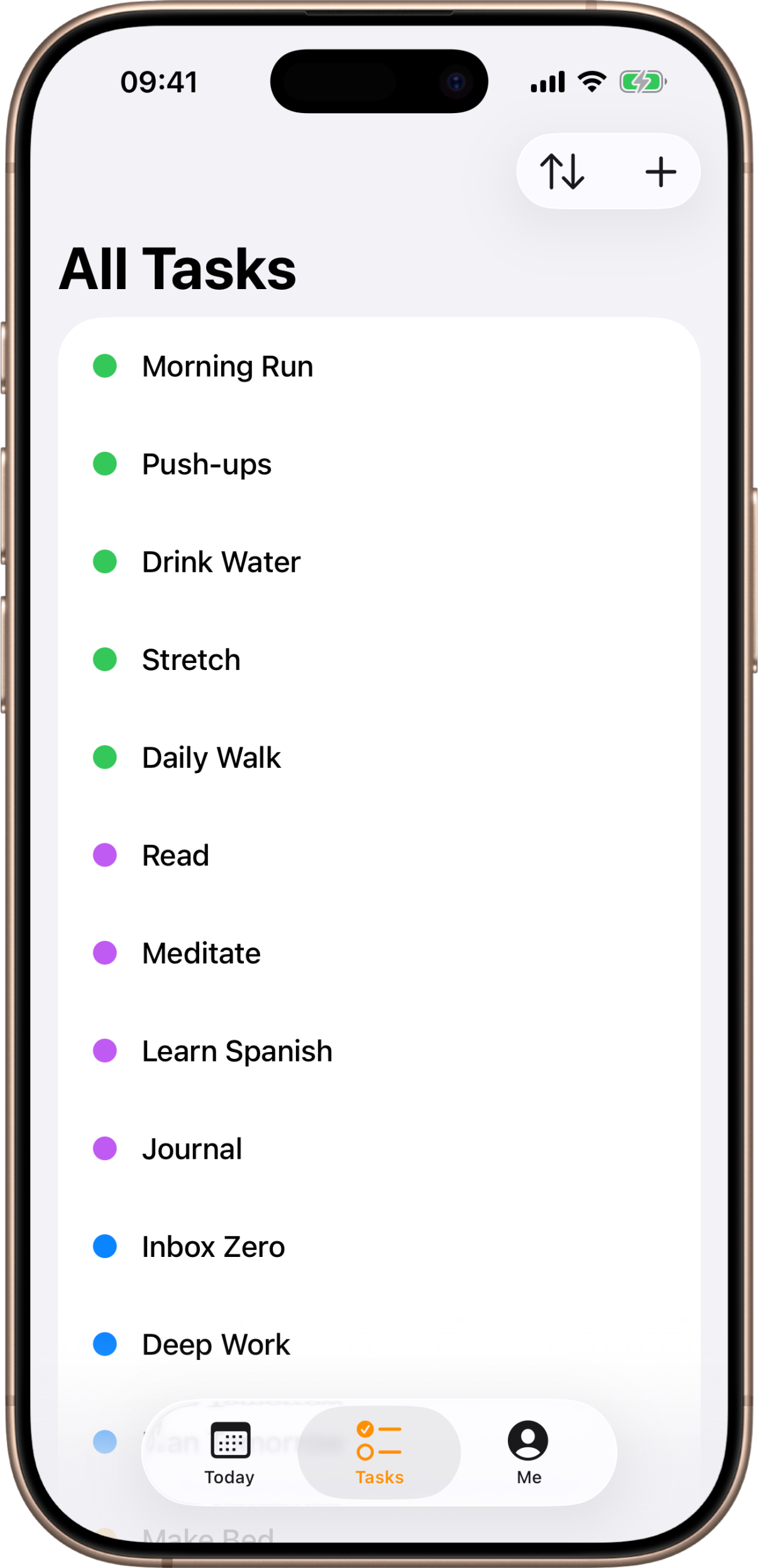
The Tasks tab is where you define your routine. Add the habits you want to keep, give each one a color, and Kyro brings them back on Today every day. You only ever set a habit up once. It’s the second tab along the bottom, marked with a checklist icon and titled All Tasks.
If you haven’t added anything yet, you’ll see “No Tasks” with a prompt to add the tasks that make up your daily routine.
Adding a task
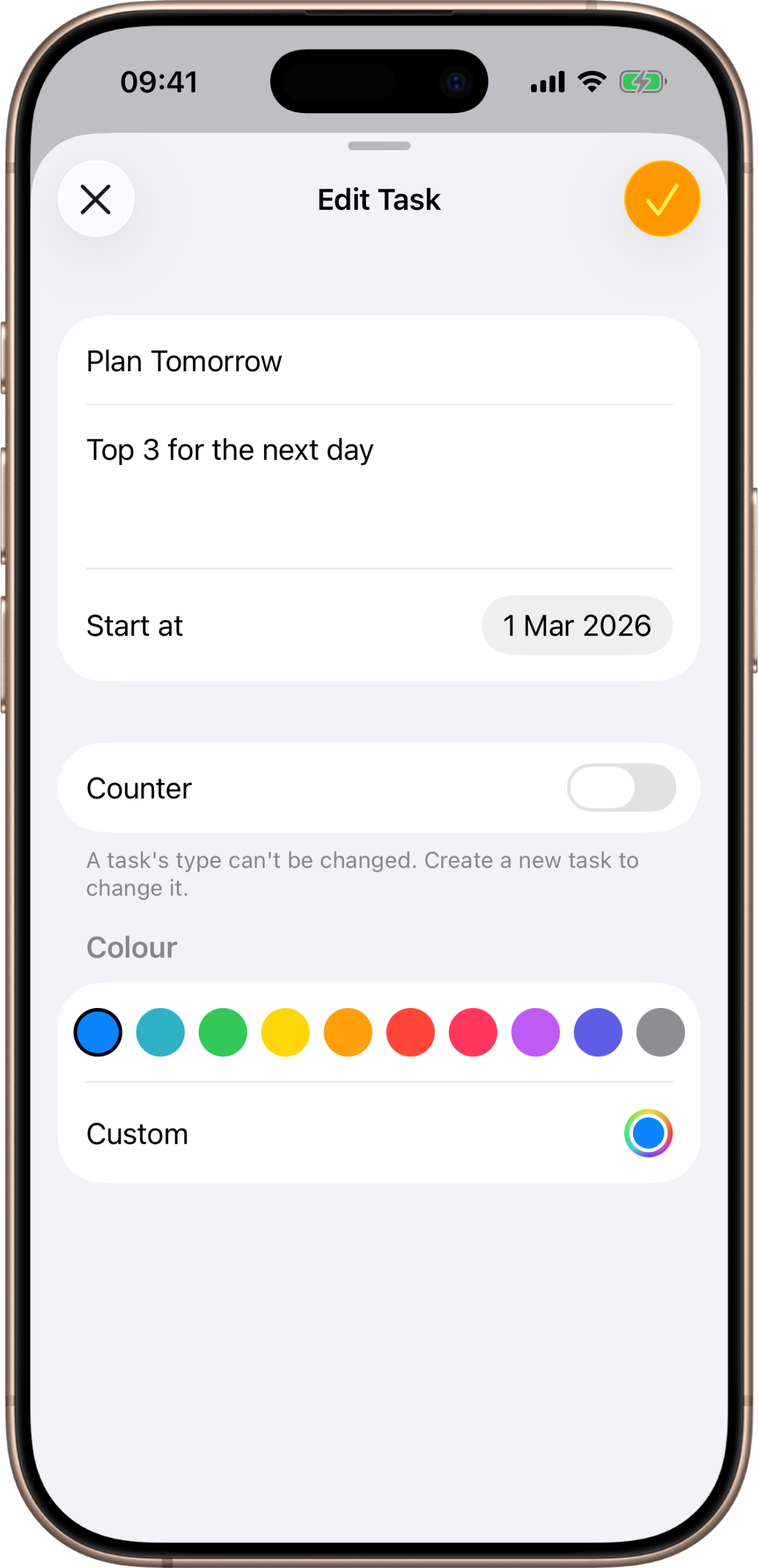
Tap the plus button in the top-right corner to open the task editor. A new task needs only a name to save — everything else is optional and can be changed later (except its type; more on that below).
Name
The name is the only required field — the Add button stays disabled until you type one. It’s what you’ll see on Today and in your history.
Notes
An optional free-text field for any detail you want to keep with the task — a reminder of what “done” means, a target you’re working toward, anything at all.
Start at
The first day the task is active. It defaults to today, but you can set it in the past (so it appears on those earlier days too) or in the future (so it doesn’t show up until then).
Counter
Leave Counter off for a simple done-or-not-done habit. Turn it on to track a number
each day instead — pages read, push-ups, glasses of water. With Counter on, a Target
stepper appears where you set the daily goal, anywhere from 1 to 9999; the day counts as
complete once you reach it. See counter tasks on Today for how you
log the number each day.
Colour
Give the task a color so your day is easy to scan. Pick one of the ten preset swatches — blue (the default), teal, green, yellow, orange, red, pink, purple, indigo, or gray — or tap Custom to choose any color you like. The color shows on the task’s card on Today, its dot here on the Tasks list, and throughout its statistics.
Editing and reordering
- Edit a task by swiping left on it and tapping Edit (or opening it from the list). You can change everything except its type. If you move a task’s start date later, any completions from before the new start are cleared.
- Reorder your tasks with the Sort button in the top-right (it appears once you have more than one task). Drag tasks into the order you want, then tap Done. This same order is used on Today.
Archiving vs. deleting
Kyro separates retiring a habit from erasing it, so you never lose history by accident.
Archive (soft delete)
Swipe left on an active task and tap Archive. After you confirm, the task drops off your routine and moves to an Archived section at the bottom of the list, but all of its past history is kept. Archived tasks are dimmed to read as inactive.
To bring one back, swipe left on it in the Archived section and tap Restore — it returns to your active routine from its original start date.
Delete (permanent)
To remove an archived task and its history for good, swipe left on it in the Archived section and tap Delete. This is permanent and can’t be undone, so Kyro asks you to confirm first.