Shops
A shop in Cartsy is simply a label for a place you buy things — your local supermarket, the pharmacy, the corner shop. Attach a shop to a product, and Cartsy can do two genuinely useful things: sort your shopping list by where you’ll buy each item, and remember which shop each past trip in your history belonged to.
Shops are deliberately simple. A shop is just a name — there’s nothing else to fill in — and you add them as you go, right when you need one. There’s no separate Shops tab to set up.
Where you manage shops
Because a shop only ever matters in relation to a product or a trip, you open the shop list from one of those two places:
- From a product. Open a product, tap Edit product, and tap the Shop row. See Products for more on editing products.
- From a past trip. In your History, open a trip and tap its Shop row.
Both open the same screen — your list of shops — where you pick one and where all the adding, renaming, and deleting happens.
Picking a shop
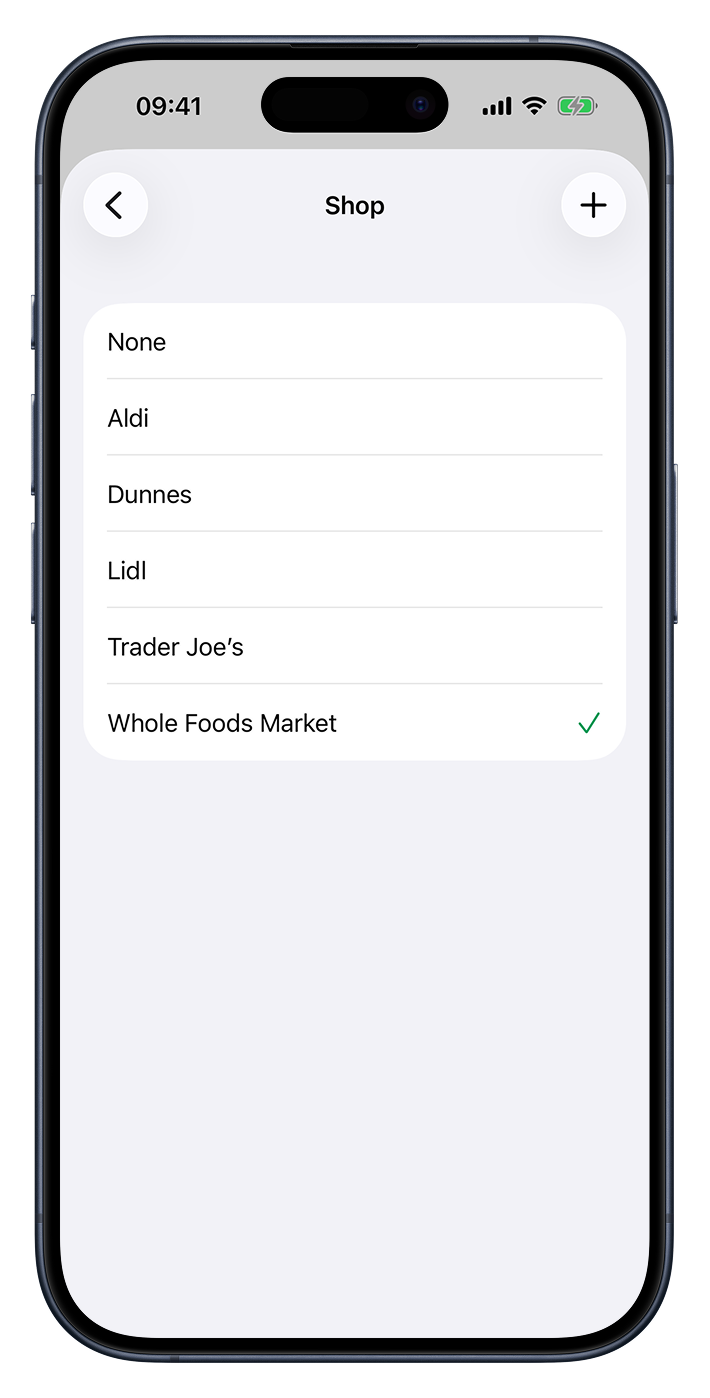
At the very top of the list is None — choose it to leave a product or trip without a shop. Below that are all your shops, listed alphabetically. Tap one to select it; a checkmark shows the current choice.
Adding a shop
Tap the plus button in the top-right corner to open the New shop screen. Give the shop a name — that’s the only thing it needs — and tap the checkmark to save. Names can be up to 30 characters, and Cartsy won’t let you create two shops with the same name, so you won’t end up with duplicates.
If you haven’t added any shops yet, the list shows “No shops yet” with a nudge to tap the plus button to add your first one.
Renaming a shop
Swipe a shop to the right and tap Edit to change its name. The new name updates everywhere that shop is used.
Deleting a shop
Swipe a shop to the left and tap Delete. Cartsy checks with you first, because removing a shop also unlinks it from any products and past trips that used it — those simply go back to having no shop. This can’t be undone.
Grouping your shopping list by shop
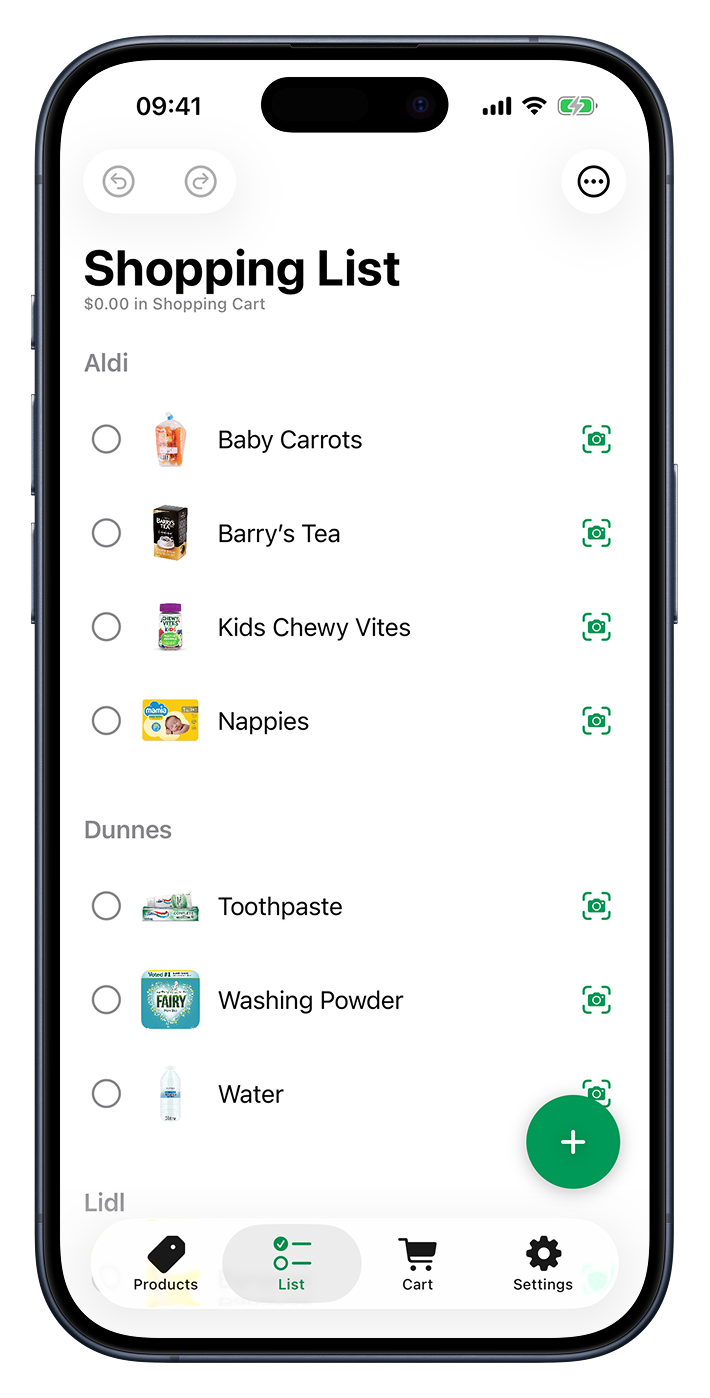
Once your products know where you buy them, your shopping list can group itself by shop — so everything from one place sits together and the list is sorted by where you’re headed before you even arrive. Anything that isn’t tied to a shop is collected under Other Items.
You turn this on with Group by Shop from the menu on the Shopping List screen, where it’s covered in full.
Shops in your history
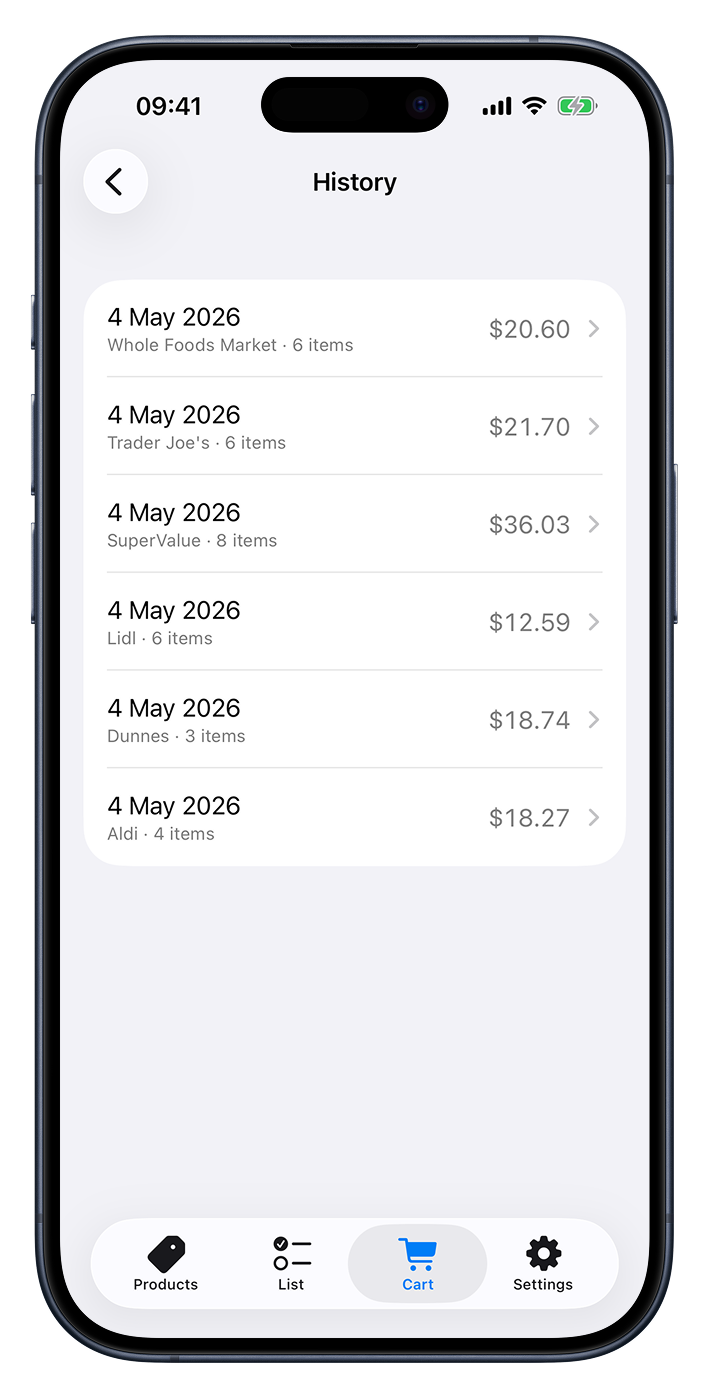
Every completed trip in your History can carry the shop it belonged to. Cartsy fills this in for you at checkout, then shows the shop’s name alongside each trip so you can tell your visits apart at a glance. If a trip’s shop is wrong or missing, open the trip and tap its Shop row to set it.