Shopping Cart
The Shopping Cart is your real-time running total. As you walk the aisles and drop things in your basket, add each one to the cart and watch the total tick up — so there are no surprises when you reach the till.
You don’t have to plan ahead to use it. Add items by scanning a price tag, scanning a barcode, or simply typing a price in, and Cartsy keeps a tally for you. If something you add is already on your Shopping List, Cartsy ticks it off there automatically, so your list and your cart stay in step.
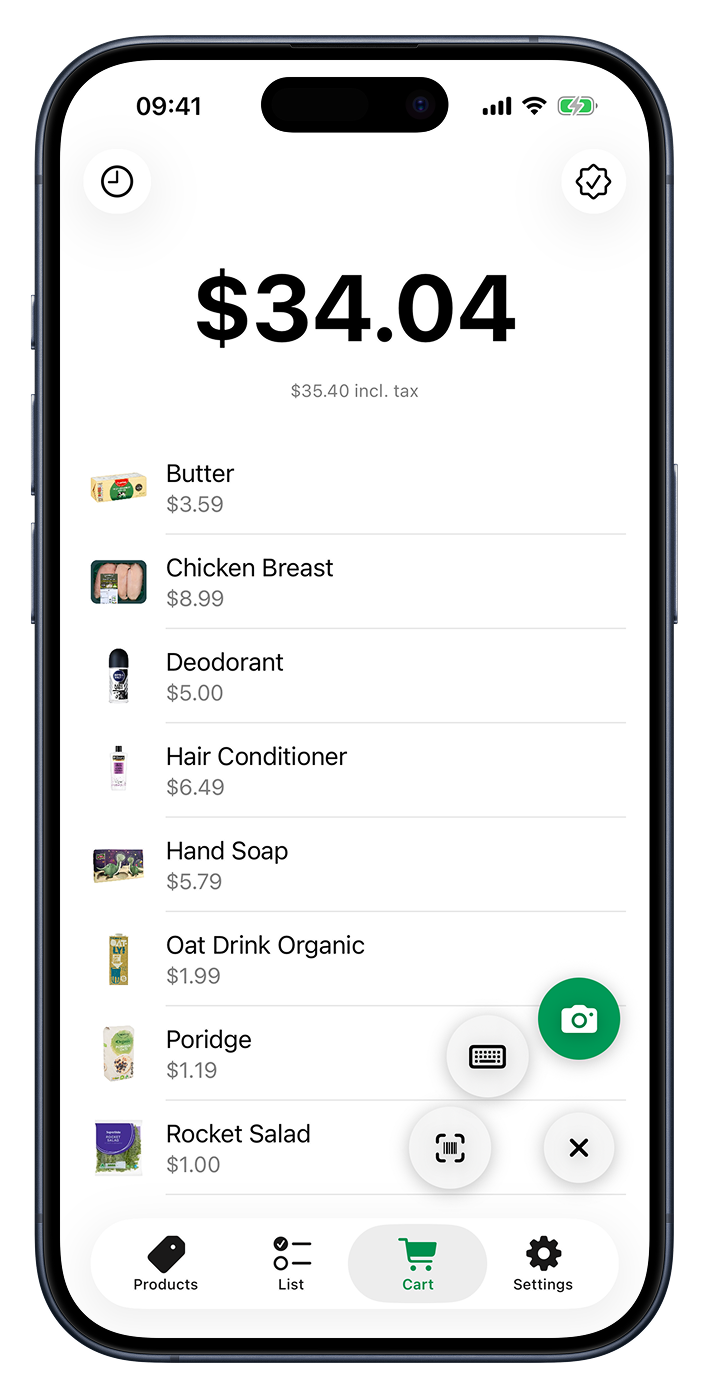
Your running total
The big number at the top of the screen is what’s in your cart right now. It updates the instant you add or remove something, so a quick glance is all it takes to see where you stand. As you scroll down through your items, the total tucks itself up into the title bar so it’s always in view.
If you’ve set a tax rate in Settings, Cartsy shows a second, smaller line just beneath the total with the incl. tax amount, so you can see the before- and after-tax figures side by side. No tax rate set? The line simply doesn’t appear.
Adding items to your cart
Tap the plus button in the bottom corner and it opens into three ways to add an item — pick whichever is easiest in the moment:
- Scan a price tag. Tap the camera button (the highlighted one) to point your camera at a price tag and let Cartsy read the number. It’s the quickest way to add something on the go. There’s a whole section on this in the Price Scanner.
- Type a price in. Tap the keypad button to punch in a price by hand. The keypad has a built-in calculator too — the +, −, × and ÷ keys let you add up a few prices or work out a multi-buy on the spot. Tap Add when the figure’s right.
- Scan a barcode or QR code. Tap the barcode button to scan a product’s code. If it matches one of your saved Products, Cartsy pops up to confirm its price and drops it in. If it’s something new, Cartsy starts a fresh product for you, code already filled in.
Each item shows its photo (when it has one), its name, and its price. Anything you add by scanning or typing a price — without a barcode — comes in as an unnamed item, shown as Unknown Product until you give it a name (see below).
Setting a quantity
Buying more than one of something? Swipe an item to the right and tap Quantity to choose how many. You can step the number up or down, or tap one of the five quick shortcuts — 1, 3, 5, 10 and 12 to begin with, though you can set them to any numbers you like under Quantity Picker in Settings. The item then shows a small Qty. badge, and the total counts every one.
Turning a scanned price into a product
When you’ve added something by price or barcode that isn’t a saved product yet, you can keep it for next time. Swipe the item to the right and tap Create product — Cartsy opens a new product with the price already filled in, ready for you to add a name, photo, or shop. Once you save it, the item in your cart links up to that product. There’s more on products in the Products section.
Removing an item
Changed your mind? Swipe an item to the left and tap delete to take it back out. The total updates right away.
Emptying the cart
Sometimes it’s easier to start over than to pick items out one by one — you walked into a different shop, a scan went in twice, or you were only testing things out. Tap the menu button in the top-right corner — the three dots, just to the right of the checkout button — and choose Clear Cart. Cartsy tells you how many items it’s about to remove and asks you to confirm, then empties the cart and drops the total back to zero.
The option is greyed out when the cart is already empty. Clearing isn’t the same as checking out: nothing is saved to your History, and anything already ticked off on your Shopping List stays ticked off. It can’t be undone, so Cartsy always checks with you first.
Working hand in hand with your shopping list
The cart and your Shopping List work together. Whenever you add a saved product to your cart, Cartsy looks for a matching item on your list and ticks it off for you — so you’re never marking the same thing done twice. Plan your trip on the list, then just shop; the cart keeps both your total and your list up to date.
Checking out
When you’re done, tap the checkout button in the top-right corner — the little checkmark. Cartsy asks you to confirm, then archives the trip and starts a fresh, empty cart for next time. The button stays greyed out until there’s at least one item in the cart.
Every checked-out trip is saved, so you can look back at what you spent and where. Tap the clock button in the top-left corner to open your History.