Price Scanner
The Price Scanner is the fastest way to get a price into Cartsy without typing. Point your camera at a shelf tag or sticker, and Cartsy reads the number straight off it — then you tap to confirm. No fiddling with the keyboard while you’ve got a basket in one hand.
It reads the printed price, not a barcode. So it works on any tag with a number on it, whether or not the product has a barcode you’ve saved.
Where you’ll find it
You don’t go looking for the scanner on its own — it pops up wherever you’d enter a price. Tap the camera button and the scanner opens full screen. You’ll meet it when you:
- Add an item to your Shopping Cart — tap the highlighted camera button.
- Set or update a product’s price in Products — tap the camera next to the price field.
- Tick an item off your Shopping List as you shop — scanning its price checks it off the list and adds it to your cart in one go.
Pointing at a price tag
When the scanner opens, you’ll see your camera view with a highlighted box in the middle. That box is the bit Cartsy is actually reading — line it up over the price on the tag and hold steady. Everything outside the box is dimmed so it’s clear where to aim.
A small Scanning badge in the top corner, with a pulsing dot, tells you Cartsy is looking. A short prompt near the bottom — Point camera at a price — nudges you in the right direction. To back out at any time, tap the ✕ in the top-left corner.
Cartsy gathers the numbers it sees for a moment — usually about a second — and then shows you what it found. There’s no button to press: as soon as it’s confident, the result slides up on its own (with a gentle tap you can feel).
The captured price
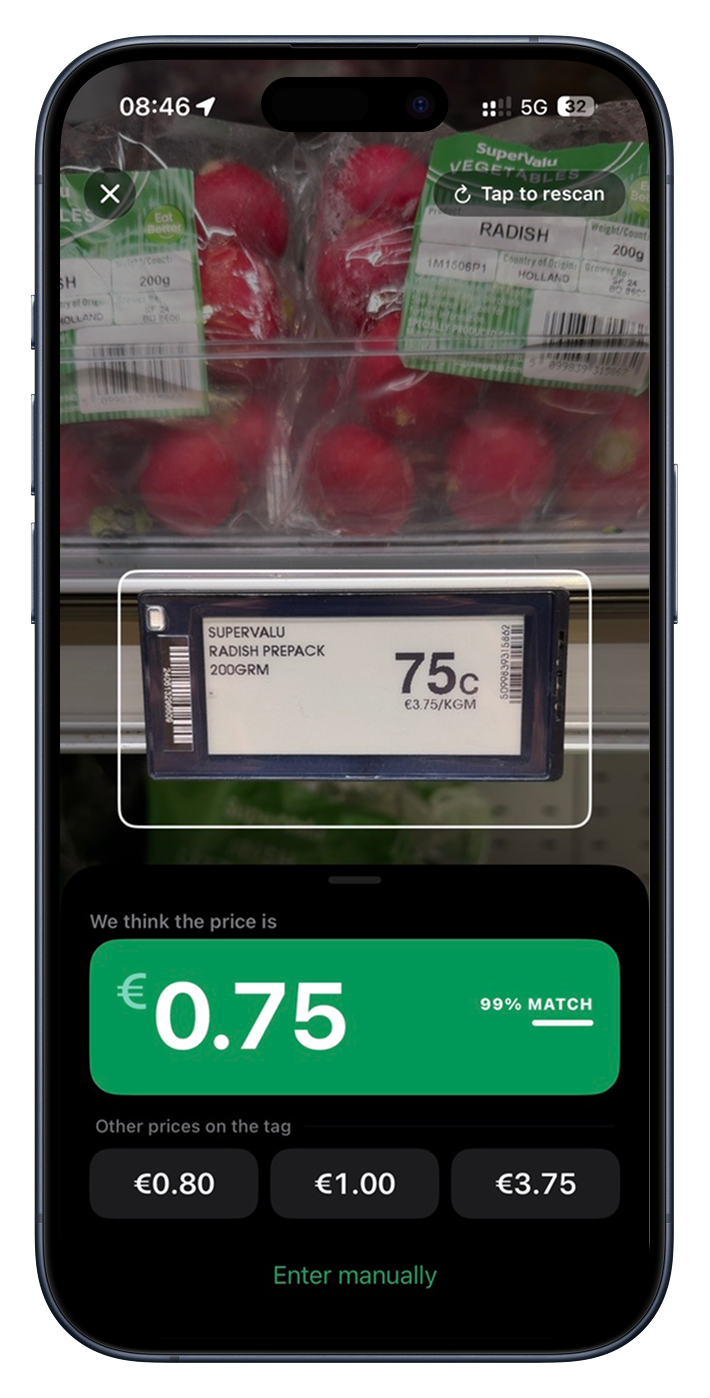
Cartsy slides up a panel with its best guess up top: We think the price is, followed by the price in big, bold figures. A small % MATCH badge sits beside it, showing how sure Cartsy is — the higher the number, the more confident it is that this is the real price.
A price tag often has more than one number on it, though — a unit price, a “was” price, a multi-buy. So if Cartsy spotted others, they appear in a row underneath, labelled Other prices on the tag. If the big one isn’t the price you meant, just tap the right one instead.
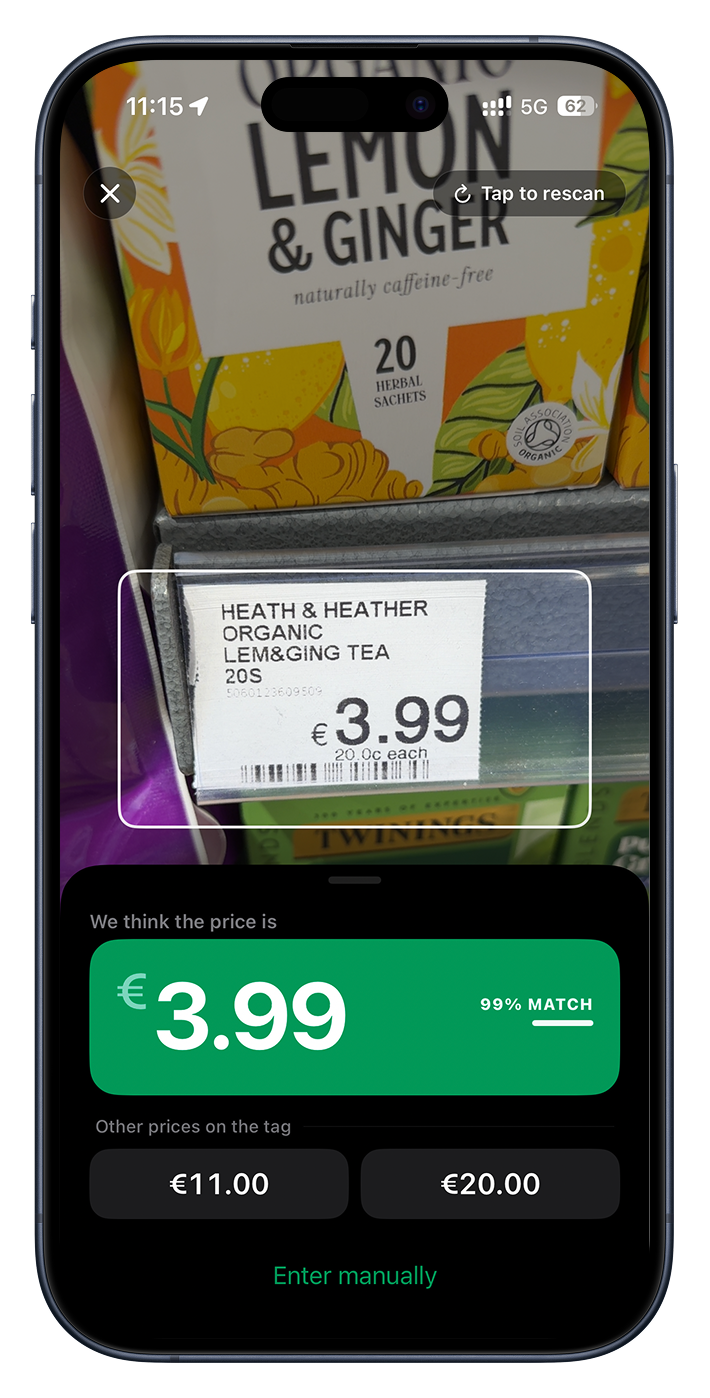
Tapping a price confirms it — Cartsy fills it in and closes the scanner. That’s the whole flow: aim, glance, tap.
Scanning again
Not quite right, or pointed at the wrong tag? Tap anywhere on the result, or the Tap to rescan badge in the top corner, and Cartsy clears its guesses and starts looking again. Reposition over the tag you want and it’ll capture a fresh reading.
Typing a price instead
Sometimes a tag is creased, faded, or just awkward to reach. Tap the keypad button (the little keyboard) — on the scanning prompt or via Enter manually on the result — to punch the price in yourself.
It’s more than a plain number pad: there’s a built-in calculator, with +, −, × and ÷ keys. Handy for adding a few prices together or working out a multi-buy on the spot. Tap Add when the figure looks right.
Tap to Scan
By default the scanner starts reading the moment it opens. If you’d rather it hold still first — to frame the shot, or just to slow things down — turn on Tap to Scan in Settings. With it on, the scanner shows a live preview and waits until you tap the screen before it starts reading. It’s off until you switch it on.
Fine-tuning the scanner
Price tags can be busy places, and Cartsy gives you a few dials to keep it focused on real prices. You’ll find them in Settings → Advanced → Price Scanner. Most people never need to touch these, but they’re there when a particular shop’s tags trip the scanner up:
Minimum Price
Any number the scanner reads below this value is ignored — a quick way to stop it latching onto tiny stray numbers like “0.5 kg”. The default is 0, which lets everything through.
Maximum Price
Numbers above this value are ignored too, so a stray phone number or product code on the tag won’t get mistaken for a price. The default is 100. Set it to 0 to switch the upper limit off entirely.
Auto-decimal Above
Some tags print prices without a decimal point — 2599 meaning 25.99. Turn this on and
any number at or above the value you set is treated as cents and divided by 100 (so 2599
becomes 25.99). It’s off by default; leave it off unless a shop you visit prints
prices this way.