Household Sharing
Most shopping isn’t a solo job. If you split the groceries with a partner, a flatmate, or the rest of the family, Household Sharing puts everyone on the same page: share your household once and everyone sees — and can edit — the same products, shops, and shopping list. Add milk to the list on your phone and it’s there on theirs a moment later; tick it off in the aisle and it disappears for everyone.
There’s nothing to sign up for. Sharing runs over iCloud, so as long as everyone’s signed in to their Apple Account, you’re a couple of taps away from shopping together.
You’ll find it under the Settings tab: tap Household Sharing. The row shows where
you stand at a glance — Not Shared when it’s just you, a member count once you’ve shared,
or Member when you’ve joined someone else’s household.
What gets shared
Sharing your household shares the three things you build up together:
- Products — your saved items, with their photos, prices, barcodes, and shops.
- Shops — the places you buy from.
- Shopping list — everything currently on the list, updated live as anyone adds or ticks off items.
Your trip history stays personal. Each person keeps their own record of past shops and what they spent — handy, since you don’t usually want your receipts mixed in with everyone else’s.
Before you start
Household Sharing needs an iCloud account. If you’re not signed in, the Household screen shows iCloud Account Required instead of the sharing button — open the Settings app, sign in with your Apple Account, then come back and try again. Everyone you invite needs to be signed in to iCloud too.
Sharing your household
When it’s just you, the screen offers a single button — Share Household. Tap it and Cartsy hands off to the standard iOS sharing screen, where you can send an invitation however you like: Messages, Mail, or by copying a link to send another way.
A few things worth knowing about how invitations work:
- Invitations are private. Only the people you invite can join — there’s no public link that anyone could stumble onto.
- Everyone can edit. Members don’t just see your list, they shop from it — adding products, ticking things off, and updating prices right alongside you.
- Invite as many people as you like. Add the whole family, or just one other person.
Once you’ve sent the first invitation you become the household’s owner, and the screen switches to showing your members.
Joining someone else’s household
To join a household, you don’t tap anything in Cartsy — you open the invitation link the owner sent you (in Messages, Mail, wherever it landed). Cartsy opens, adds you to the household, and from then on you’re shopping from the shared products, shops, and list.
While you’re a member, your own products, shops, and list are set aside — you’ll see the shared household’s instead. Nothing is deleted: the moment you leave, everything of your own comes right back exactly as you left it.
Seeing who’s in your household
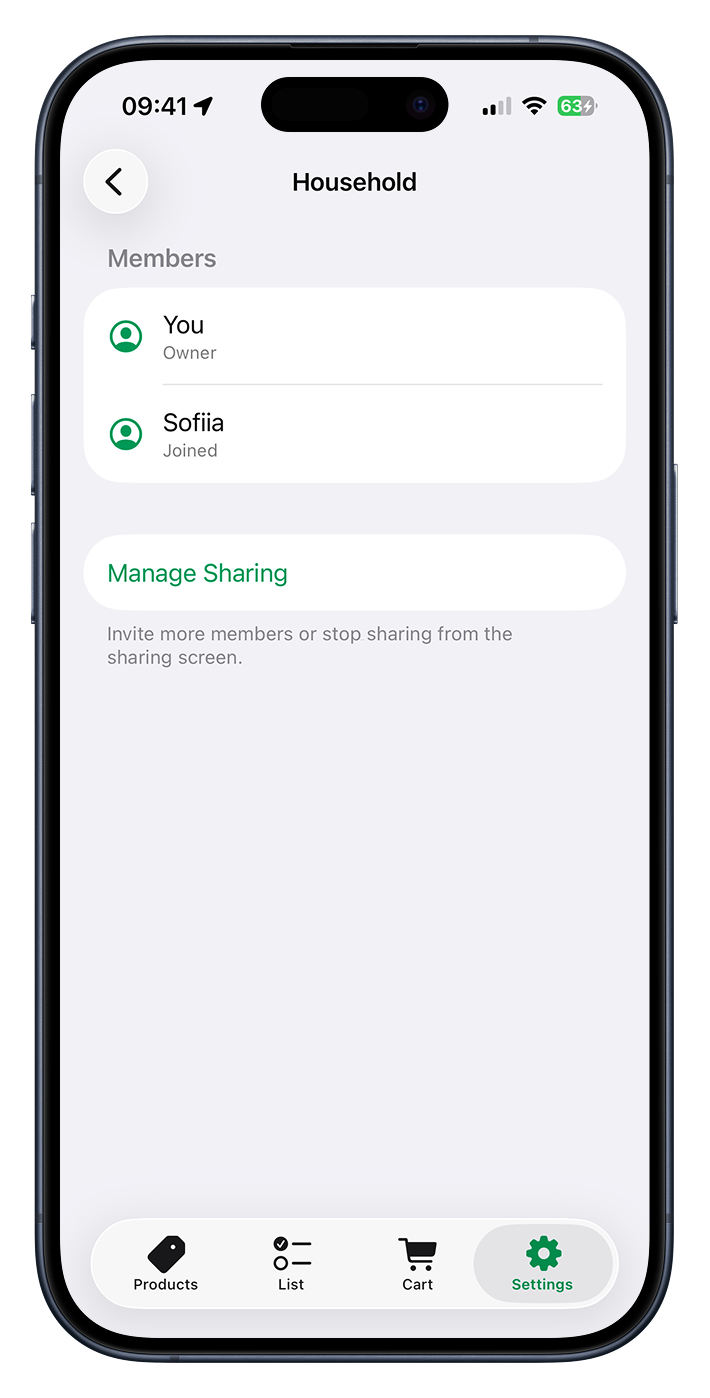
Once a household is shared, the screen lists everyone in it — the screenshot above shows this view. Each person appears with their name (or the email or phone number they were invited with) and their current status:
- Owner — the person who set the household up and sent the invitations.
- Joined — a member who’s accepted and is now sharing the list with you.
- Invited — hasn’t joined yet — someone you’ve invited who hasn’t opened the invitation yet. Once they do, they flip to Joined.
Your own entry is marked You so it’s easy to pick yourself out.
Managing and stopping
The button at the bottom of the screen opens the same iOS sharing screen, where you manage everything to do with the household:
- If you’re the owner, tap Manage Sharing to invite more people, see who’s joined, or stop sharing altogether. Stopping sharing ends it for everyone — the household goes back to being just yours.
- If you’ve joined someone else’s household, tap Manage or Leave Household to leave. Leaving brings your own set-aside products, shops, and list straight back.
Good to know
- It’s free. Household Sharing works on the free plan — you don’t need Cartsy Pro to share.
- Changes sync over iCloud, so they appear on everyone’s device within moments rather than instantly — a brief lag on a slow connection is normal.
- Leaving never loses anything. Whether you stop sharing or leave a household, your own data is always waiting for you.